Appearance
Setting Up a Label Printer for IntelliTrack
Print Asset, Assignee, Location, Item and Item-Description labels from IntelliTrack, and set up your thermal label printer so it matches the label size you select.
Introduction to Label Feature in IntelliTrack
Asset, Assignee, Location, Item, and Item-Description labels can be printed as a bulk operation via the Print Labels option.
The Print Labels option is available from the Bulk Changes options at the following pages:
- Assets page: Home > Assets > Assets page
- Assignees page: Home > Management > Assets > Assignees page
- Items page: Home > Management > Items > Items page
- Locations page: Home > Management > Locations > Sites > Sites page > Locations button to reach the Locations page for this Site
The label size options in IntelliTrack are:
- 2 x 1 in.
- 3 x 1 in.
- 3 x 2 in.
- 3 x 5 in.
- 4 x 2 in.
Important
When printing labels from IntelliTrack, the thermal label printer must be set up to accommodate the corresponding label size that is selected in IntelliTrack.
Label Printer Considerations
Common thermal label printer manufacturers are Zebra and Printronix and some tips for setting up printers from these manufacturers are provided below. For other printers, reference the printer User's Guide.
- Zebra: For Zebra printers, make sure that the latest Printer Drivers are installed. In addition to the printer driver: for each label format, set up a profile to configure the printer so that the specific label size and format is applied when the label is printed. Please click this link for more information about Zebra printer setup utilities: https://www.zebra.com/us/en/support-downloads/printer-software/printer-setup-utilities.html.
- Printronix: For Printronix printers, make sure that the latest Printer Drivers are installed. In addition to the printer driver: configure the printer so that the specific label size and format is applied when the label is printed.
Printing Labels in IntelliTrack
To print labels in IntelliTrack, please follow these steps (example screens show the Assets page):
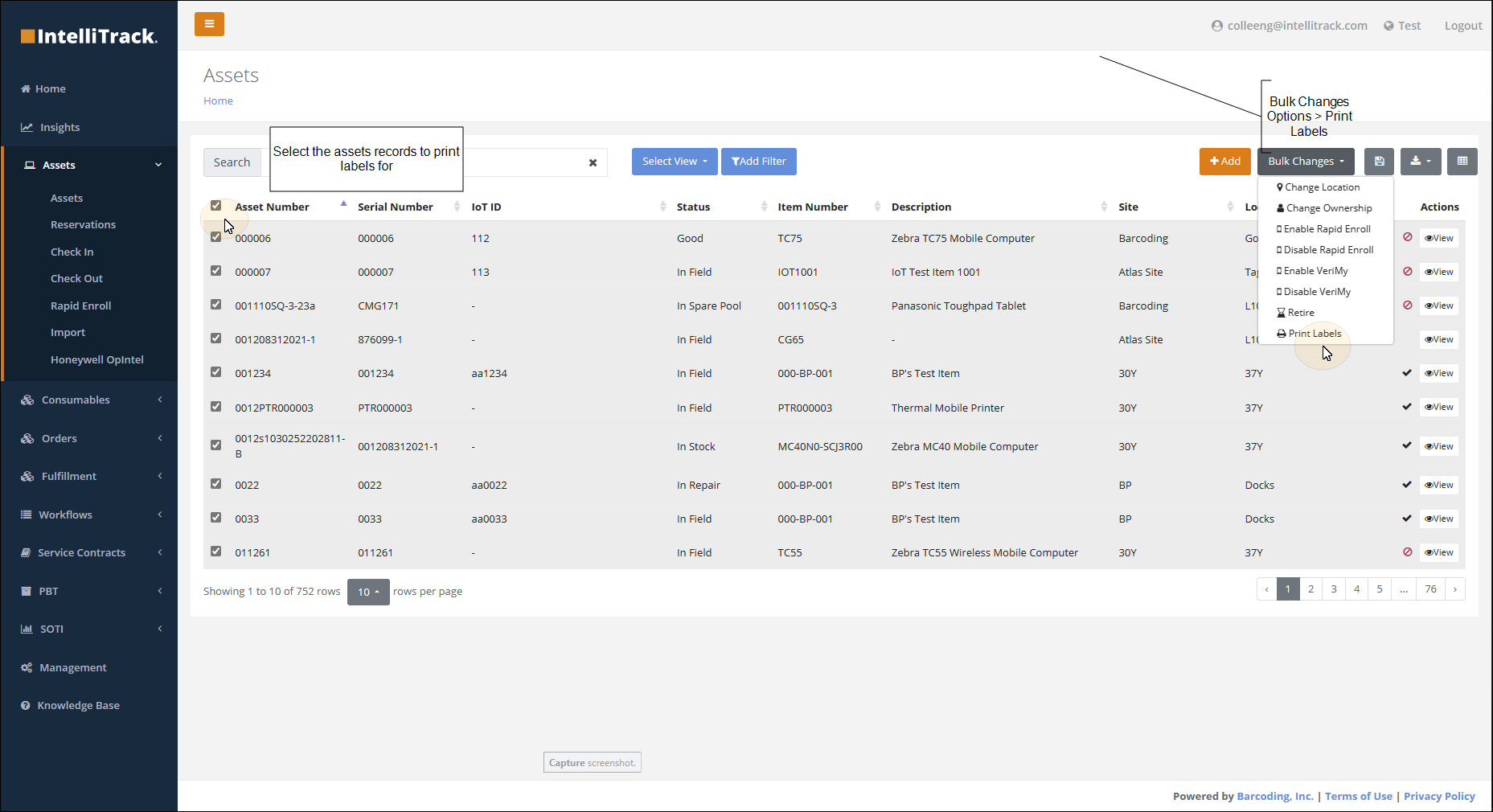
The User selects records to be printed as labels by marking the checkbox to the left of the record.
The User selects Bulk Changes > Print Labels.
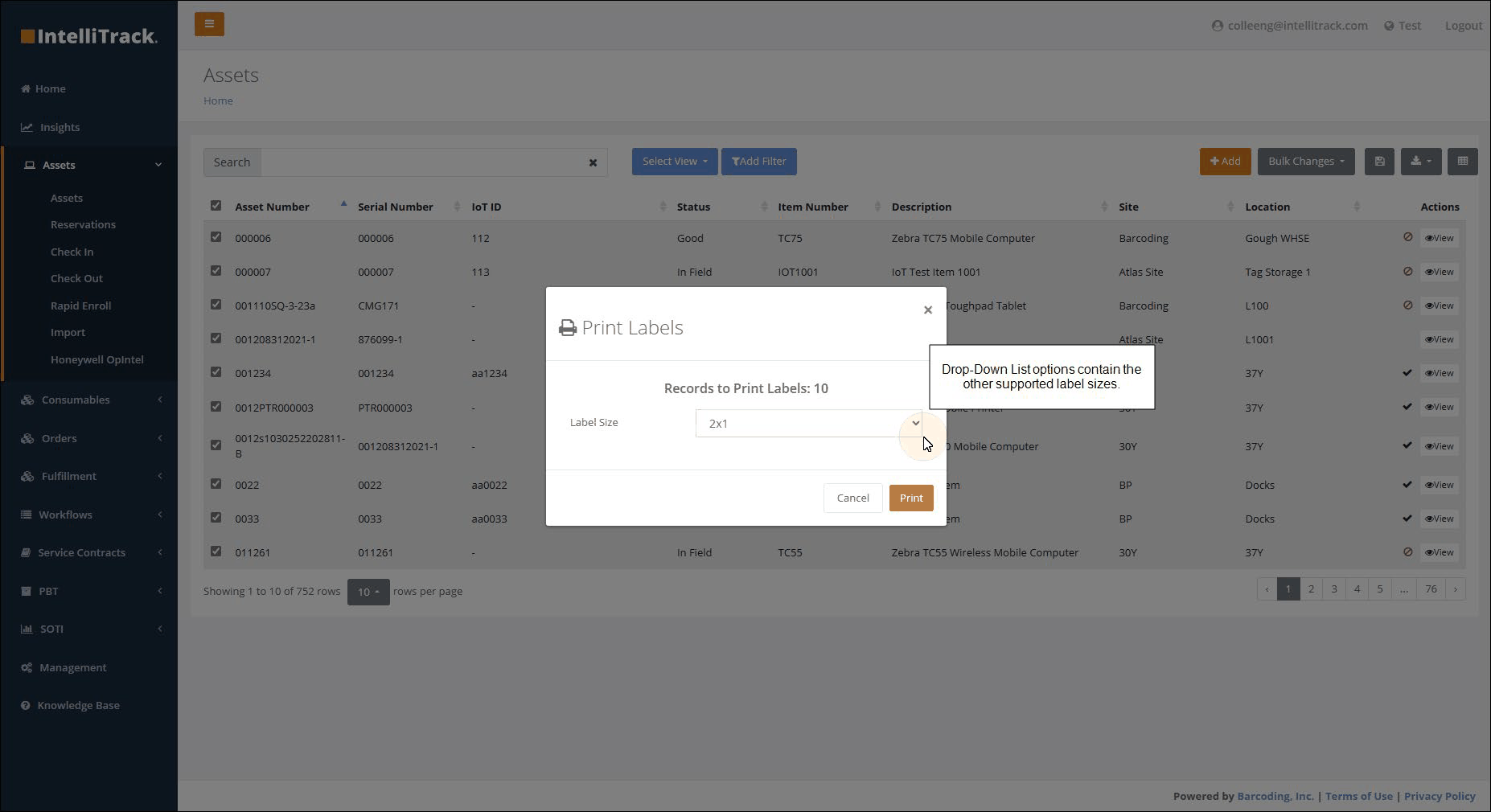
The Print Labels popup appears.
The User selects the label size and then presses Print.
A Print window appears with a preview of the labels. The User selects the printer from the list of installed printers
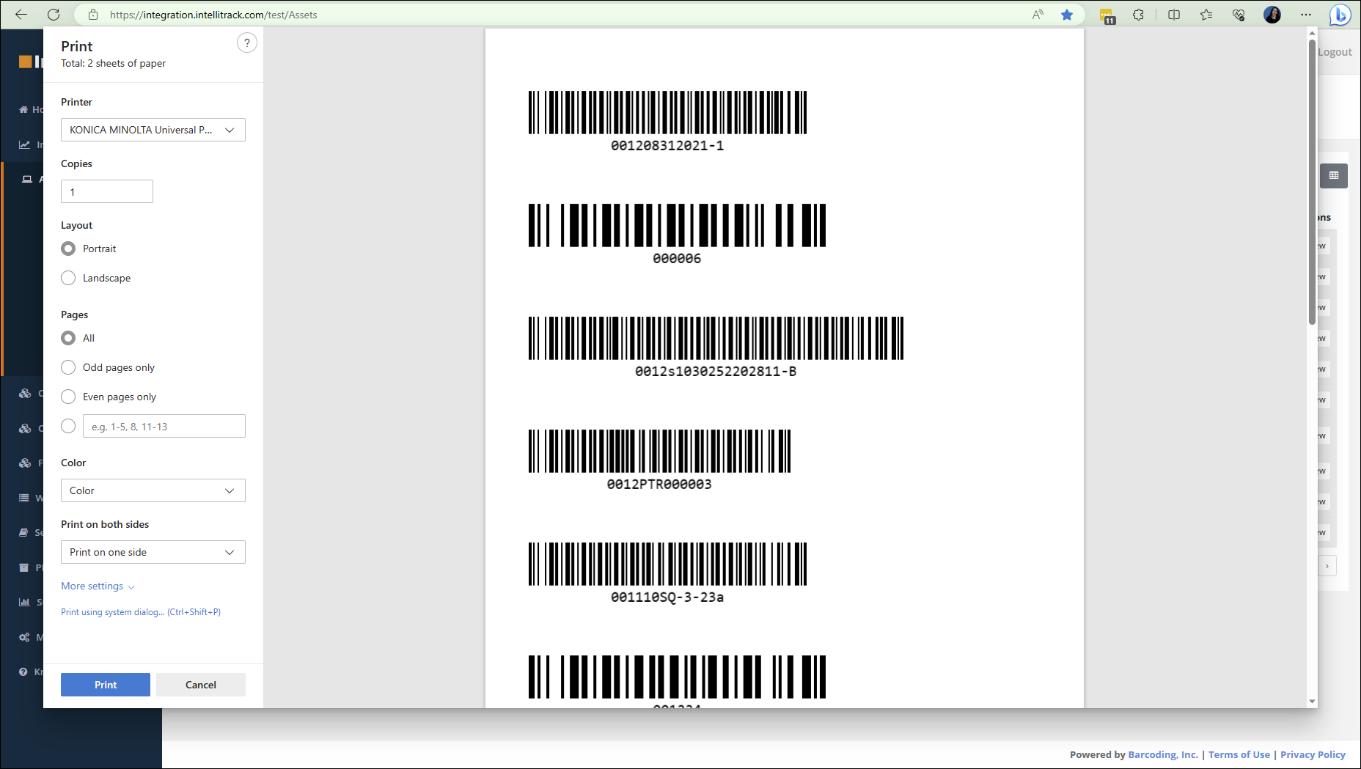
When the Print button is pressed, the labels are sent to this printer and then printed.
Note
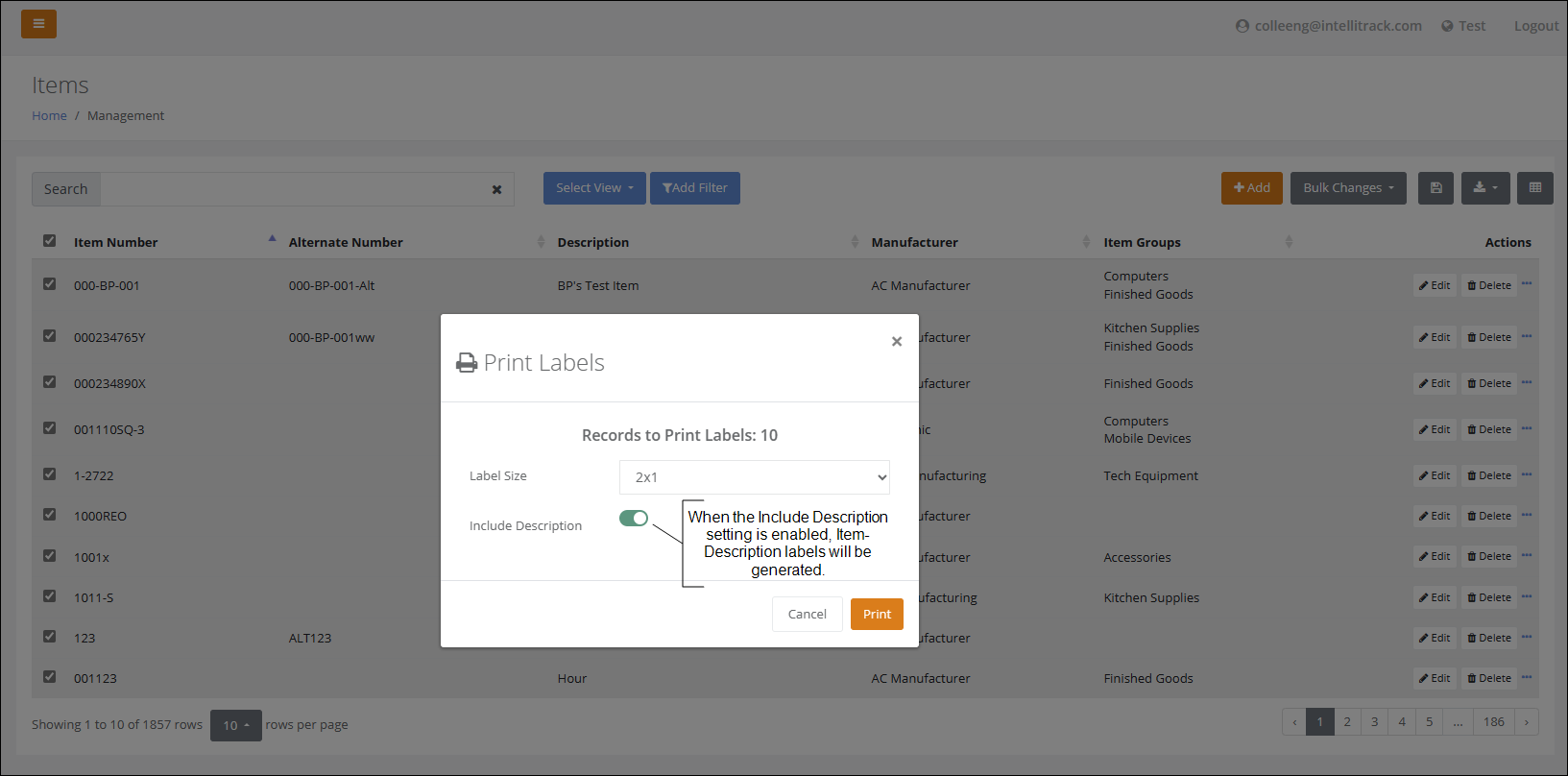
At the Items page, the User may print an Item label or an Item-Description label. The Print Labels popup at the Items page contains a setting: Include Description.
- When the Include Description is enabled, an Item-Description label will be generated.
- When the Include Description setting is disabled, an Item label (without a description) will be generated.
Label Printer Setting Considerations
For the Label Printer, set the label size in the Windows Printer Preferences (More Settings).
Windows Settings > Devices > Printers and Scanners > Select Printer > Manage. At the Manage your device window, select Printing Preferences.
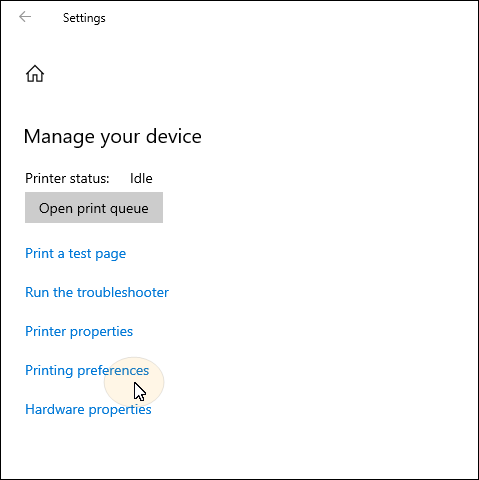
For the thermal label printer, make sure that the driver is installed and up to date and that the corresponding label size that is being printed from IntelliTrack is selected and applied:
- Driver: The printer driver for the printer manufacturer needs to be installed and up to date.
- Label Size: For best results the label size needs to be set to the corresponding label size that the User has selected in IntelliTrack. Important: The label size needs to be one of the label sizes that IntelliTrack supports (2 x 1, 3 x 1, 3 x 2, 3 x 5, 4 x 2).
Related
- IntelliTrack Getting Started Guide — printing Location labels and label printer considerations
- IntelliTrack Q2 2023 Release Notes — when label printing was introduced
- Platform and Compatibility FAQs