Appearance
IntelliTrack Q2 2023 Release Notes
Released: August 23, 2023
Quarterly release covering new dashboard visualizations and preconfigured dashboards, data view updates and subscriptions, label printing, data import logic updates, RMA replacement tracking, and consumable inventory enhancements.
General & Multi-Bundle Updates
Dashboards
Added the ability to use new types of visualizations (donut, bar, and pie charts, and single KPIs (cards)) for custom dashboards.
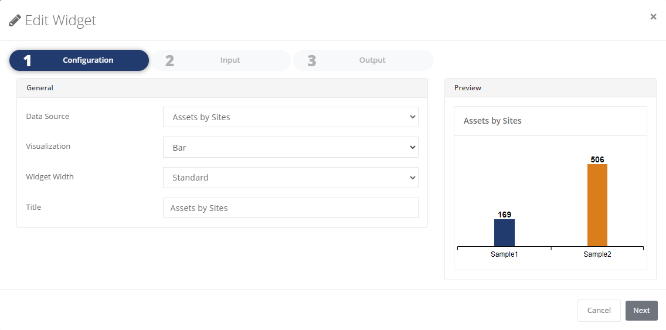
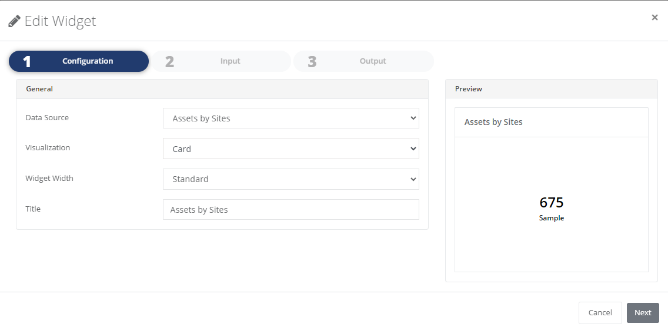
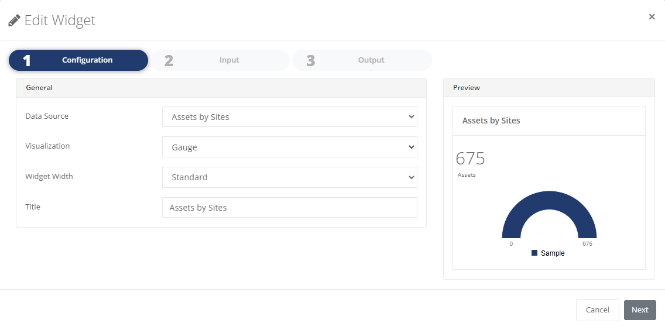
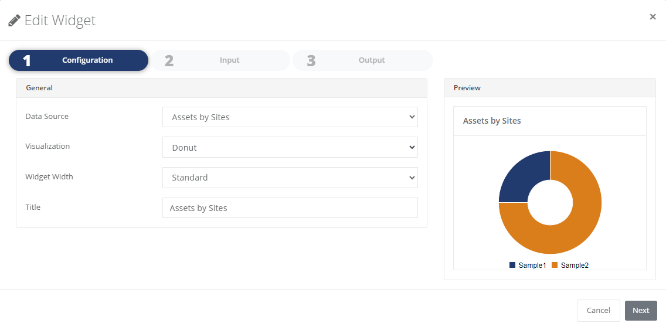
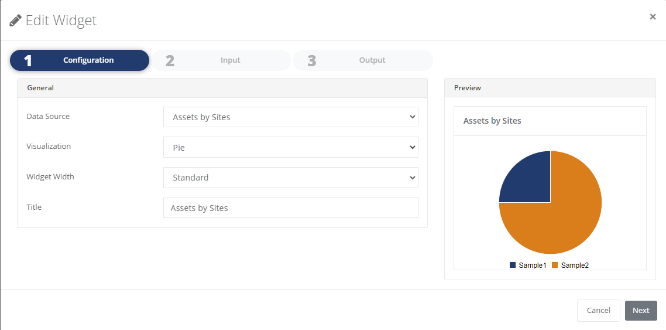
Added the ability to set the width of dashboard widgets when creating a dashboard. At the Edit Widget screen a new field, Widget Width, allows the user to select Standard Width, Wide, Extra Wide, or Full Screen.
Updated the wording of several field labels of the Configuration and Output steps when creating a new custom dashboard and updated some UI elements to improve ease of use.
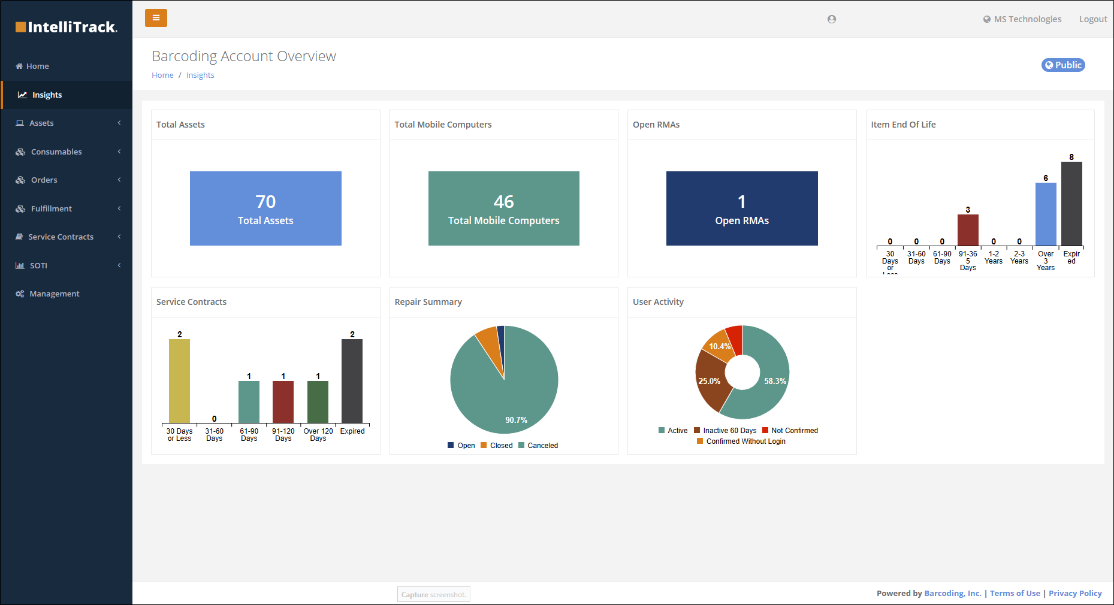
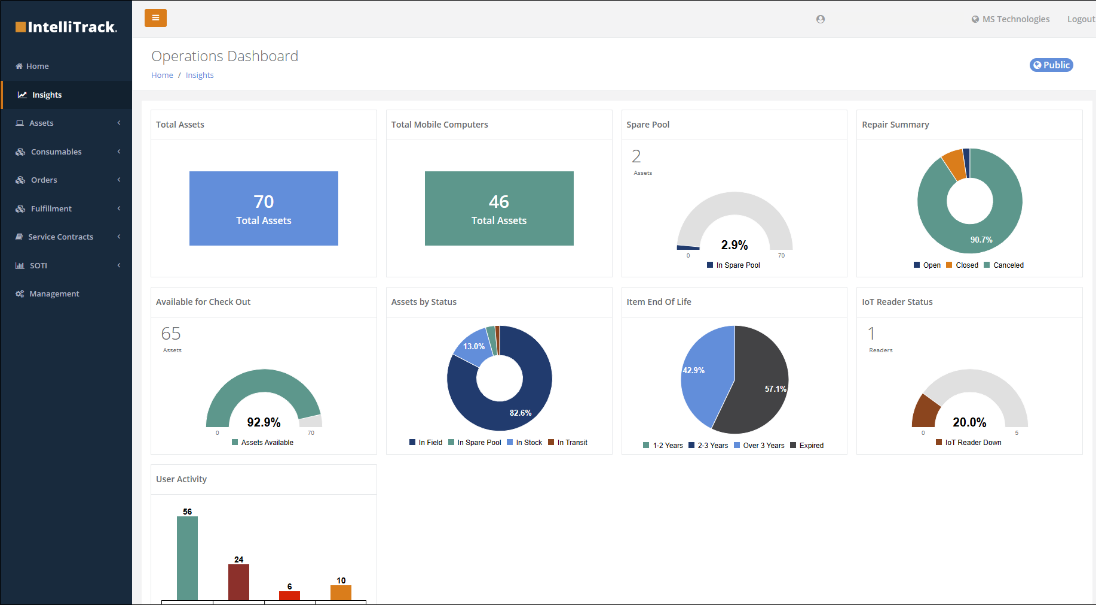
Added two new preconfigured dashboards with multiple widgets for managing IT Asset operational performance, Barcoding Account Overview and Operations Dashboard. These dashboards are available from Home > Insights.
The Barcoding Account Overview dashboard provides visibility to total assets and mobile computers under management and when items will be going End of Life. Visibility is also provided to RMAs/repair data, device usage, and service contract expirations.
The Operations Dashboard also provided visibility to total assets and mobile computers under management, repair data and device usage, and also provides visibility to rotational asset and IoT reader status.
Data Views
- Added the capability to update public and private data views by the user that created it. The process is to:
- Load the view on the appropriate page.
- Make changes to the current view by adding/removing columns and/or adding/removing filters.
- Click the Save button.
- The Save Data View Settings dialog is displayed. The Name field will be pre-populated with the currently loaded view's name. The user will have the option of changing the view name.
- If the user chooses to keep the name unchanged, the current view will be updated with the changes made.
- If the user chooses to change the name, a new view will be created with the settings.
- Added the capability to subscribe to a view. This allows users more options to create and distribute customized reports.
IntelliTrack Mobile
- Provided the capability to search for an Item by Alternate Number.
- Provided the capability for Site and Location pickers to filter the list based on what the user types into a Search entry box.
- Fixed case sensitivity issue with the Search by Customer function under Picking Orders > Select Order.
- Fixed case sensitivity issue with the Search by Vendor function under Receiving Orders > Select Order.
Label Printing
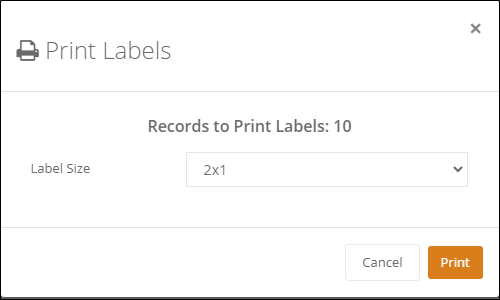
- IntelliTrack now supports the printing of four label types (Assignee, Asset, Item, and Location) in the following label sizes (2x1, 3x1, 3x2, 3x5, and 4x2 inches). Label printing options are available on each related Index screen (i.e., Assignees, Assets, Items, and Locations screens) as an option from the Bulk Changes button. You can select multiple labels to print by using the checkboxes on the screen and sorting and filtering data as required.
Data Import Updates
- Added a new field "Retired" to the asset import spreadsheet template. Valid values for this field are True/False, T/F, or 1/0.
- Updated the Import Asset logic:
- For IT Assets, the following fields are required for a NEW asset: Asset Number, Item Number, Serial Number, Site, Location, and Status.
- For Rotational Assets or Fixed Assets, the following fields are required for a NEW asset: Asset Number and Item Number.
- If a tenant contains the Fixed Assets bundle and/or the Rotational Assets bundle but not the IT Assets bundle, the Asset Number and the Item Number are required in the import file.
- If the tenant contains the IT Assets bundle plus any other combination of bundles, the Asset Number, Item Number, Serial Number, Site, Location, and Status are required in the import file.
- There are no impacts to import records for updating an asset.
- Updated the Import Sites logic:
- For IT Assets, the following fields are required for a NEW site: Name, Street, Country, State, Postal Code, Location, and City.
- For Rotational Assets, Fixed Assets, Consumable Inventory, and Patient Belongings Tracking (PBT), the Name field is required for a NEW site.
- If a tenant contains the Fixed Assets bundle, the Rotational Assets bundle, the Consumable Inventory bundle, and/or the PBT bundle but not the IT Assets bundle, the Name field is required in the import file.
- If the tenant contains the IT Assets bundle plus any other combination of bundles, the Name, Street, Country, State, Postal Code, Location, and City are required in the import file.
- The above conditions apply to new sites. There is no impact to updating an existing site.
Miscellaneous Cross Platform Updates
- Allow users to select multiple assignees at the Assignee page, items at the Item page, and locations at the Location page for bulk print label action.
- Prevent a user from deleting a User Defined Field if this field is in use.
- Fixed an issue with the Assets by Site report not exporting the number of assets assigned to a given site when the report is exported to a CSV file.
- Fixed a display issue when a user attempts to search for an asset that is not within their allowed sites or site groups.
- Provided the Assets Not Inventoried report that displays asset, item, and location information. The report can be filtered on multiple attributes including a transaction date range.
- Created a new Device Details tab under Home > Assets > View that displays information from the appropriate MDM (SOTI MobiControl or Honeywell OpIntel). The SOTI MobiControl and Honeywell OpIntel tabs have been removed.
- Renamed the End of Life field to End of Sale Date on the Item Details tab accessed from Home > Management > Items > Items > Edit.
- Added a new End of Service Date to the Item Details tab accessed from Home > Management > Items > Items > Edit.
- Added Retired On and Retired By as optional fields at the Assets page. This allows the User to create a view that shows Retired Asset details.
IT Asset Updates
RMA Summary Report Updates
- The default sort order for the RMA Summary report is now by the most recent RMA Created on the initial load of the report.
- Implemented support for replacement information by incorporating the following fields into the Manage Columns list:
- Replacement Shipped Date
- Zebra Spare Pool - Date shipped from Zebra to a Site
- Barcoding Spare Pool - Date shipped from Barcoding to a Site
- Replacement Serial Number
- Replacement Tracking Number
- Replacement Shipped Date
Miscellaneous IT Asset Updates
- Added a field on the RMA Details screen for the original site of the device.
- Added the Replacement Ship Date, Replacement Serial Number, and Replacement Tracking Number to the RMA Details screen.
- Implemented support for when the OEM Repair Depot ships a repaired device directly back to a customer, the "Shipped To Customer" field is populated with the same data as "Ship From Repair Depot".
- Fixed an issue with the "Ship To" State field displaying on the IT Asset Packing Slip.
- Fixed an issue with the display of the Tracking Number on the RMA Details page and the RMA Summary report.
VeriMy™
- Added the Asset Owner field to display on the main screen and the ability for an administrator to toggle whether the owner's name is displayed for mobile devices. To display or not display the owner's name, navigate to Home > Management > Settings > Tenant Settings > VeriMy and toggle the Show Device Owner field.
Consumable Inventory Updates
Miscellaneous Consumable Inventory Enhancements
- Provided the capability to select an Item Group from the Manage Columns window to allow additional filtering functionality and to display Item Groups field on the Consumable Orders report.
- Fixed issue displaying the Item Description on the Consumable Orders report.
- Provided the ability to edit Unit Cost for an item.
- Fixed issue where zero was allowed as a valid reorder point or maximum quantity value.