Appearance
IntelliTrack Q2 2024 Release Notes
Released: July 9, 2024
Quarterly release introducing seven major features - BarTender label management, consolidated check out, container tracking, service desk ticket creation, camera scanning in IntelliTrack Mobile, VeriMy enhancements, and a webhooks framework - along with new features and fixes for the general platform, IntelliTrack Mobile, and the IT Assets, Fixed Assets, Rotational Assets, Consumable Inventory, and Mailroom bundles.
BarTender / Label Management
IntelliTrack has now been Integrated with BarTender Cloud™.
This add-on feature will enable IntelliTrack Users, with the proper permissions and bundles, to print data labels from BarTender Cloud™ for:
- Items
- Locations
- Assets
- Assignees
Label Templates, which can be customized based on the Tenant's needs, can be accessed from the Management > Labels > Label Templates menu.
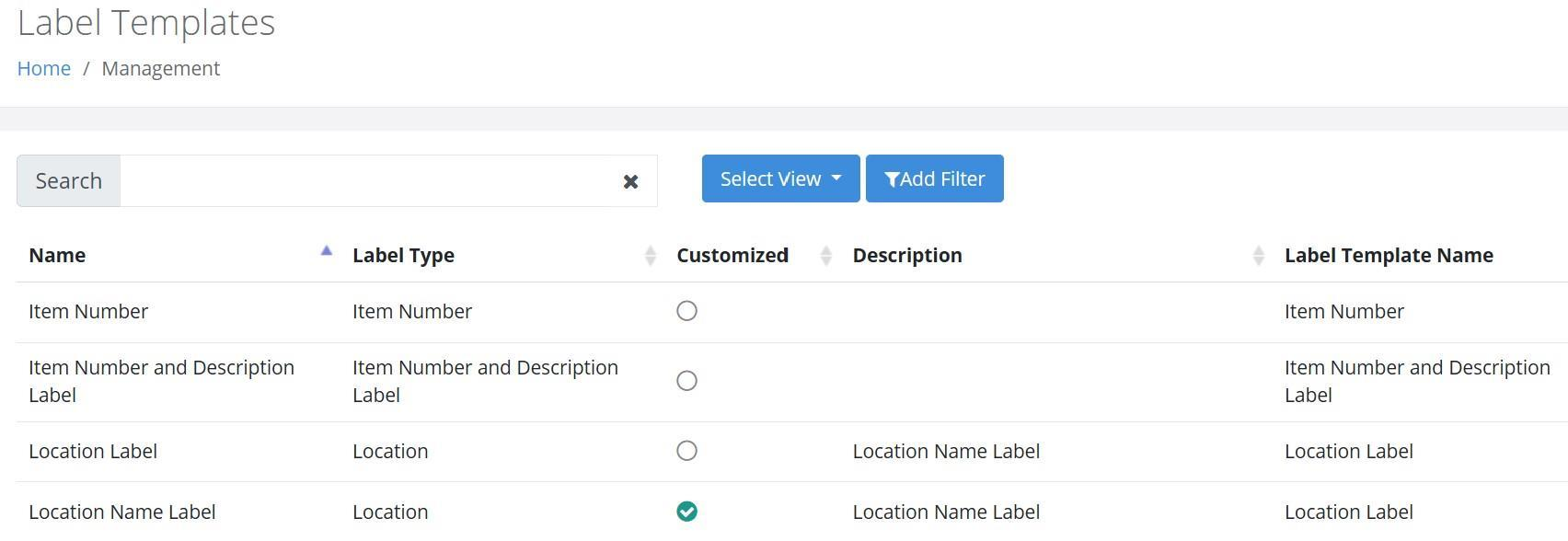
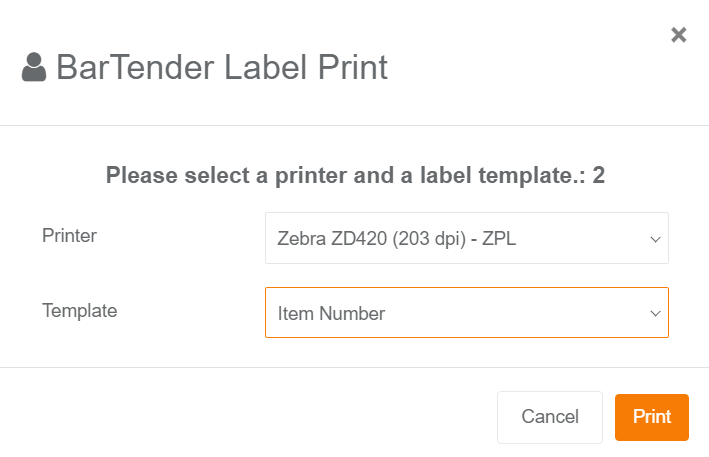
Benefits include robust label quality and the opportunity to incorporate specialized features, such as logos.
Consolidated Check Out
The ability to perform an Asset Check Out and Item Issue on the same page has been implemented at the Check Out Assets page, as illustrated on the following two screenshots.
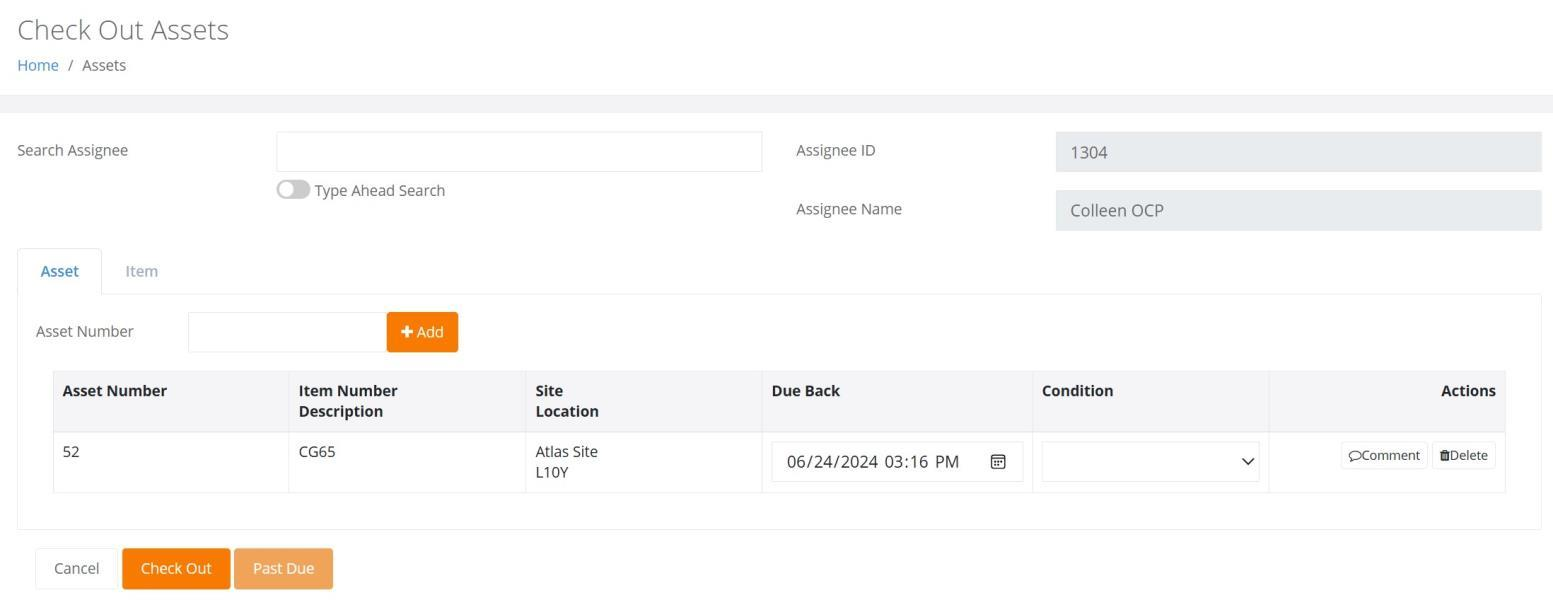
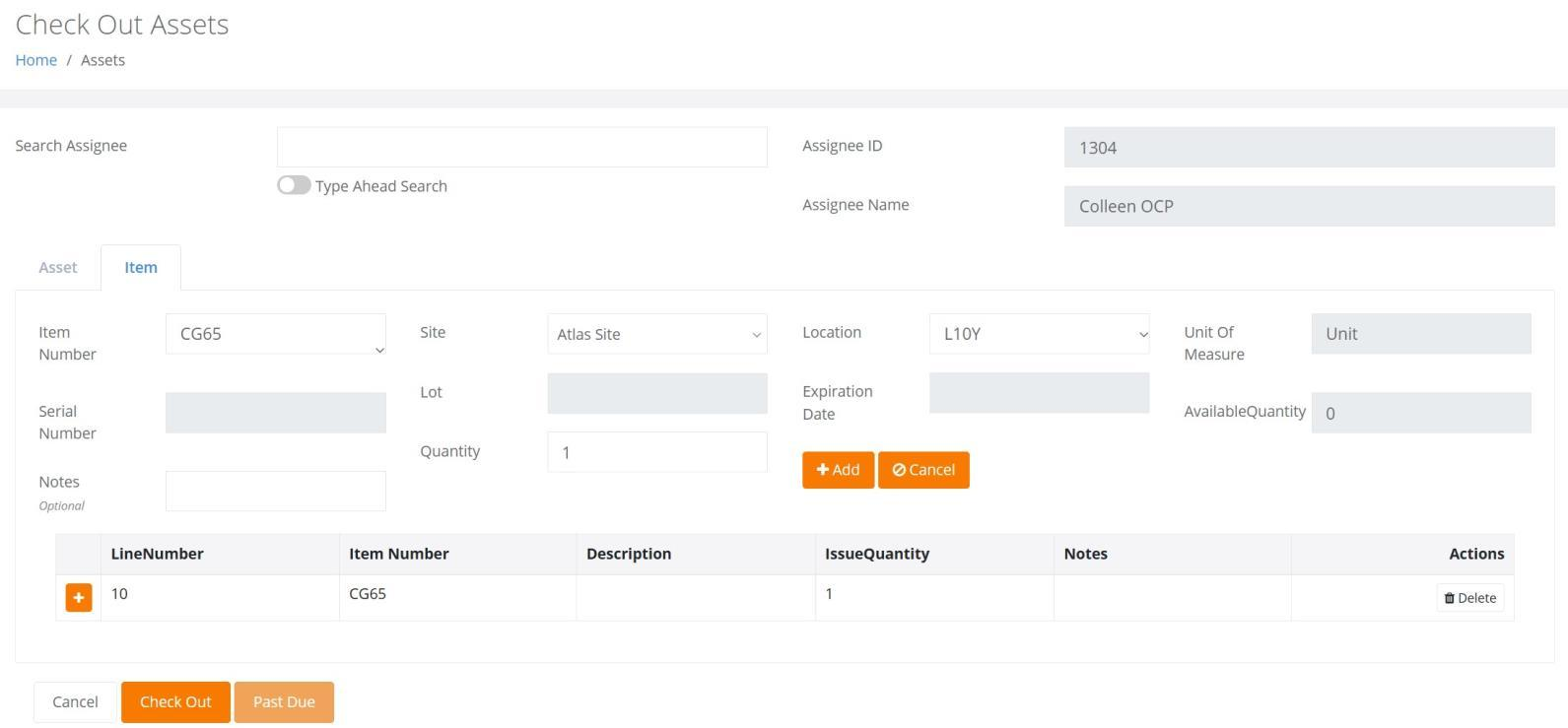
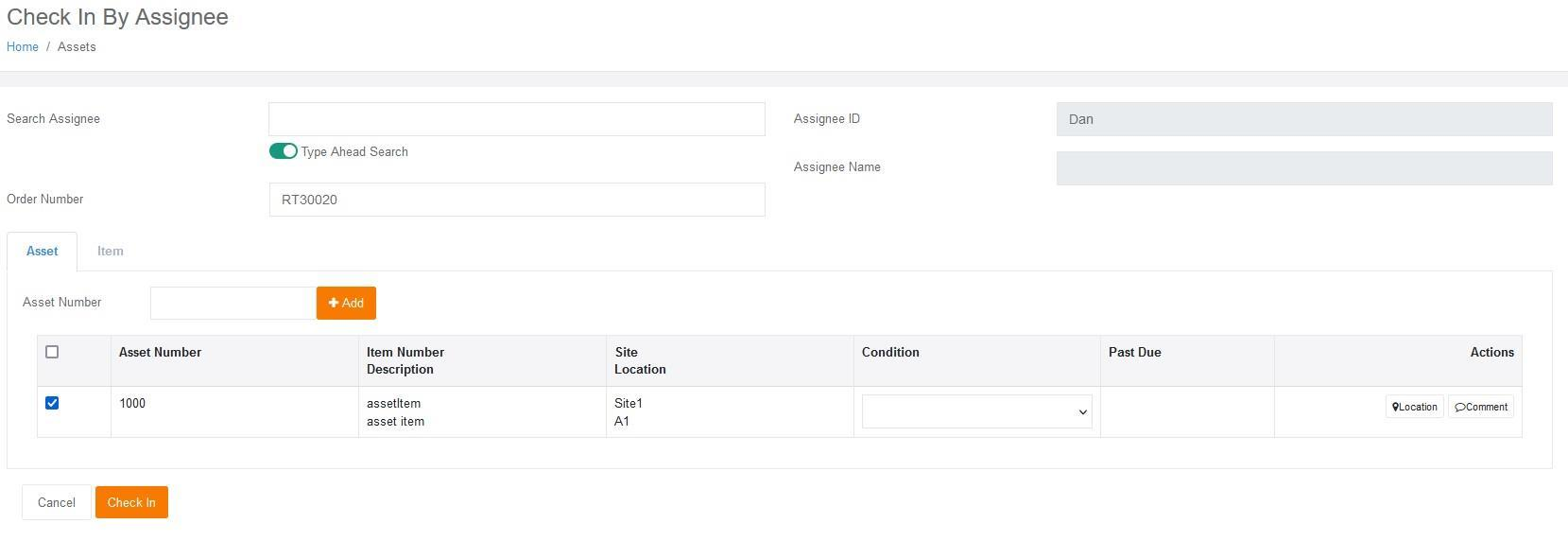
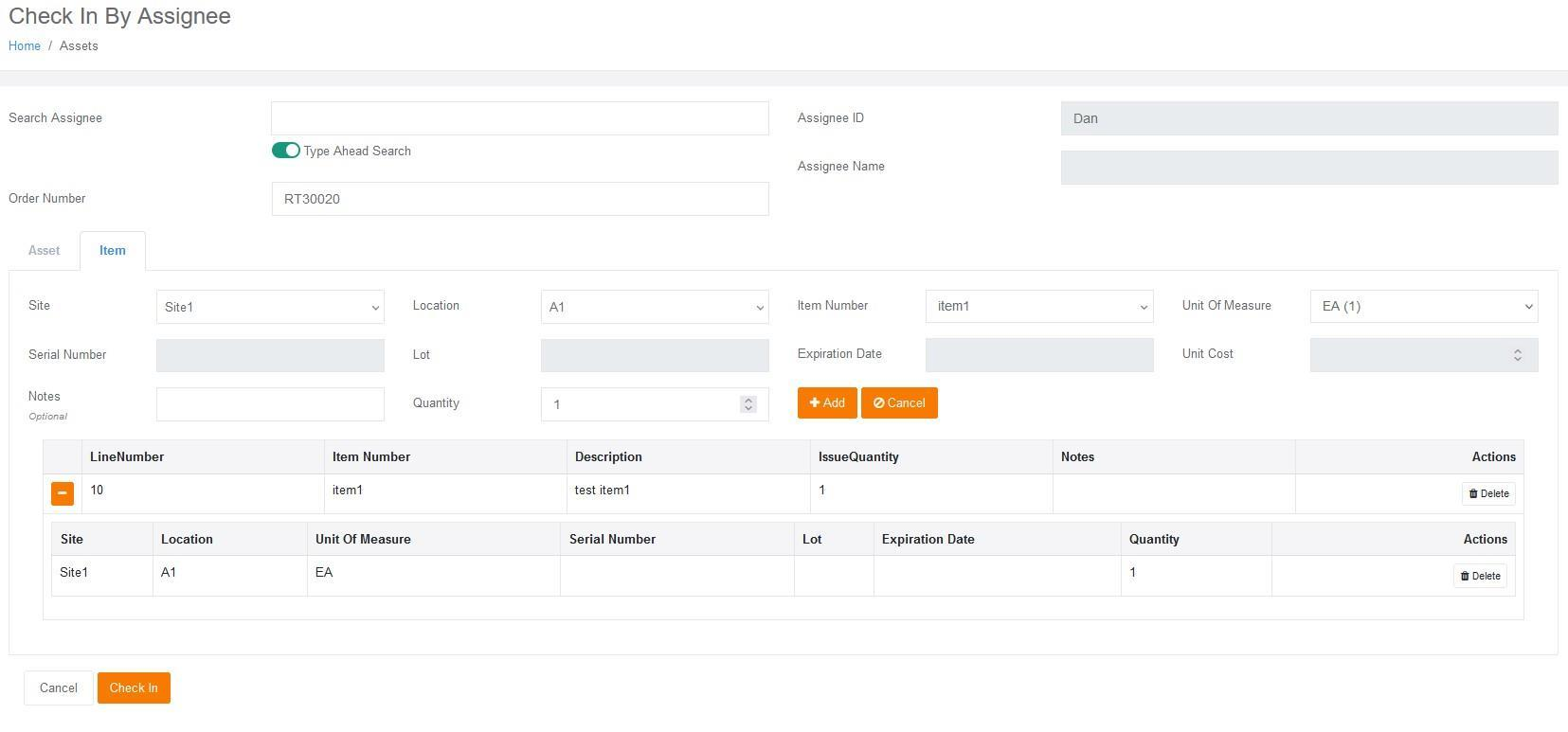
The ability to perform an Asset Check In and an Item Return has been implemented on the Check In By Assignee page, as illustrated on the following two screenshots.
Container Tracking
Viewing a List of Containers as well as the ability to Add, Edit, and Delete them is now available from the Main Menu > Containers option for the Fixed Assets, Rotational Assets, and Consumable Inventory bundles.
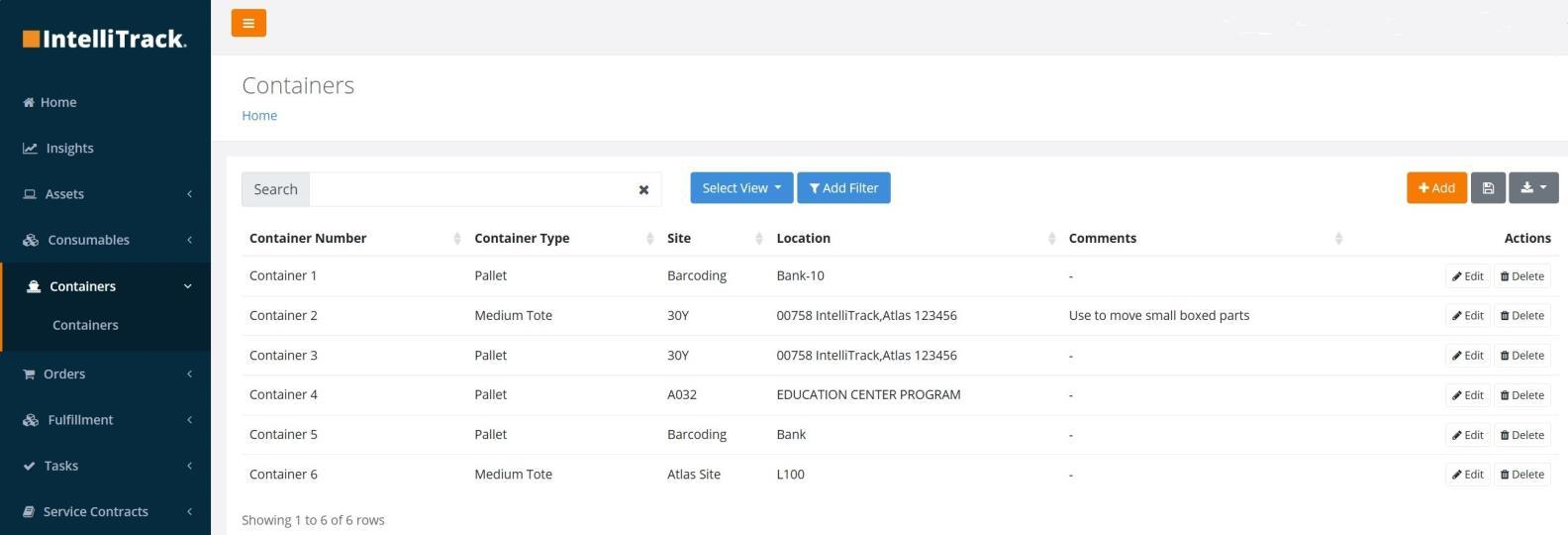
This feature enables the User to create a Container, place it in a Site and Location, and then enter Assets or Items into the Container, which in IntelliTrack is a Moveable Storage Unit.
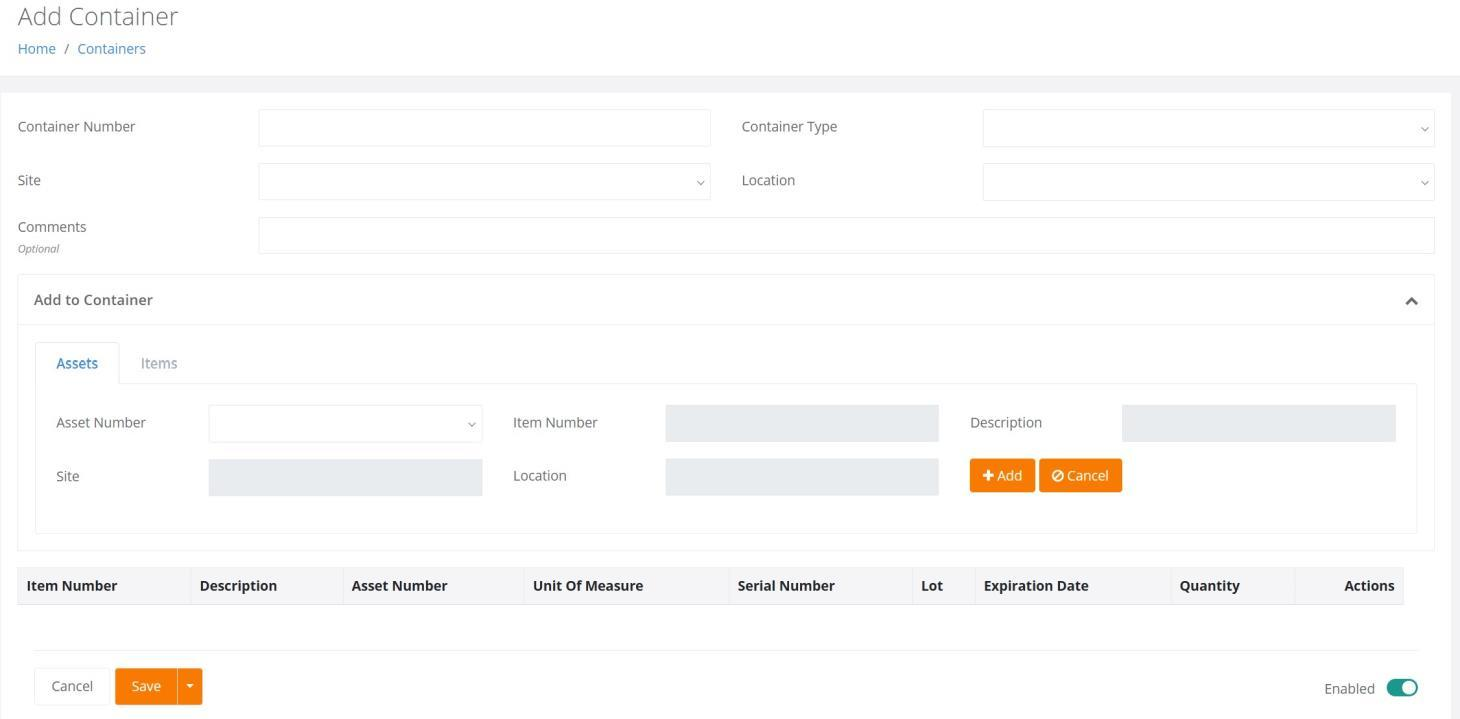
When a Container is complete, it, along with its contents, can be moved to another Site and Location.
Service Desk Ticket Creation
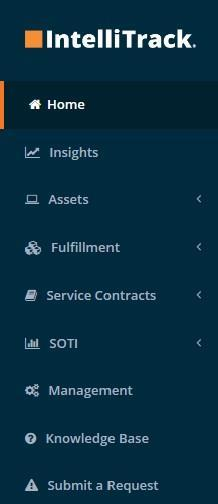
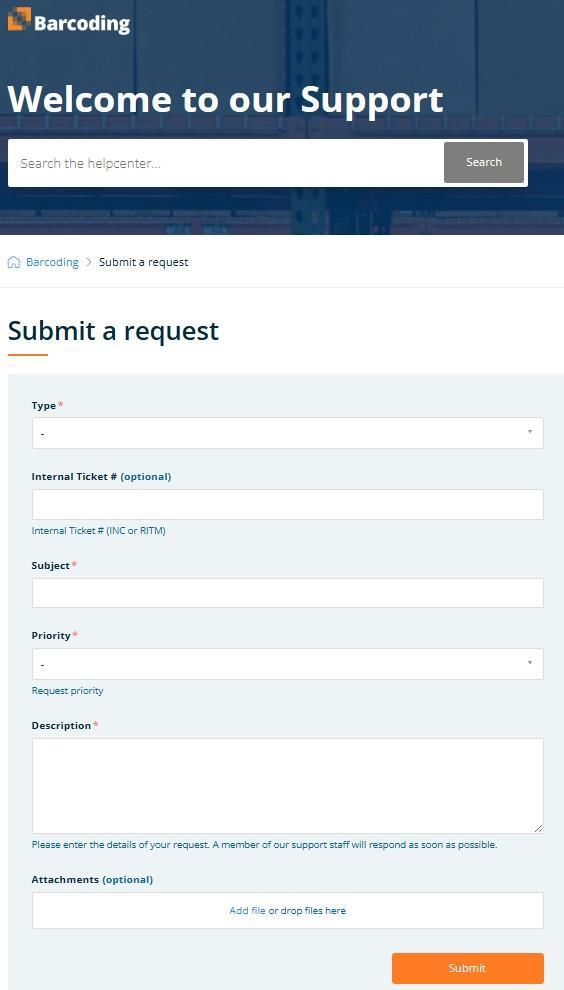
A new Menu option "Submit a Request" has been added. Clicking on this option will redirect the User to the Submit Help Request page in Zendesk.
Camera Scanning in IntelliTrack Mobile
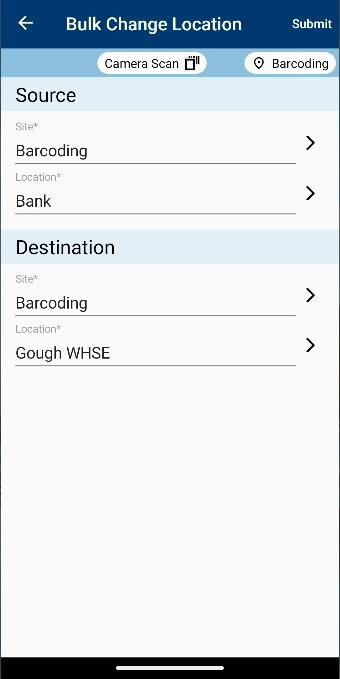
Barcode Scanning from the Mobile application has been implemented. This feature utilizes the device's camera scanner and is available on consumer Android devices or Rugged devices that do not have an integrated scanner but do have a camera.
Note: Datalogic, Honeywell, and Zebra Technologies' devices have integrated scanners. As a result, camera scanning through IntelliTrack Mobile on these devices is not an option.
VeriMy Enhancements
New Features
Asset History will now display a record when VeriMy is Enabled or Disabled.
VeriMy Status Changes are now recorded in Asset History.
An Administrator can now customize a VeriMy Locate Message from within the Tenant's VeriMy Settings page.
The device's Flashlight/Camera now flashes on a Locate alert.
Enable Detailed Logging has been implemented. If Toggled On, an expiration date of one week will be enforced. If expired, the setting will Toggle Off.
Improved handling has been implemented in the event VeriMy times out during the Check In process.
When VeriMy times out due to inactivity, a message will now be displayed to alert the User that the device is inactive.
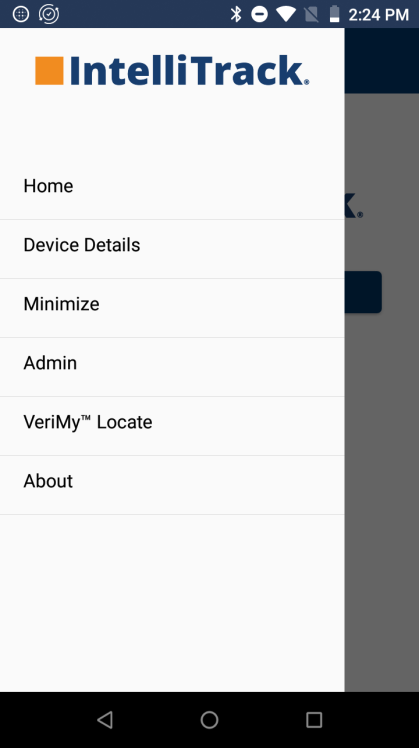
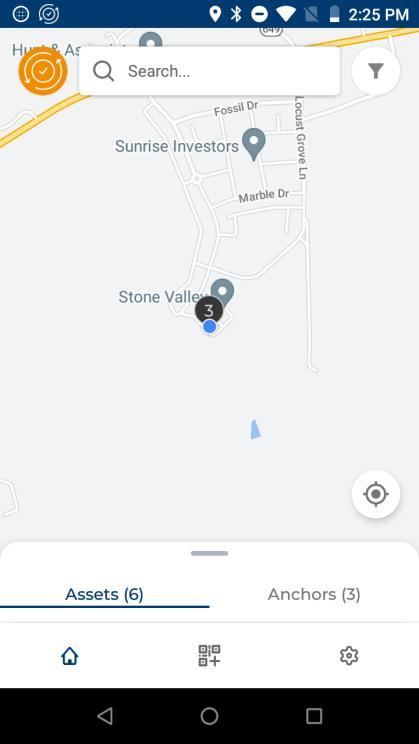
VeriMy's new functionality for Device Tracking has been implemented. When installed, and the User has the proper permissions, the Locate Menu will be available. Upon launching the application, a map view will be displayed, as shown below.
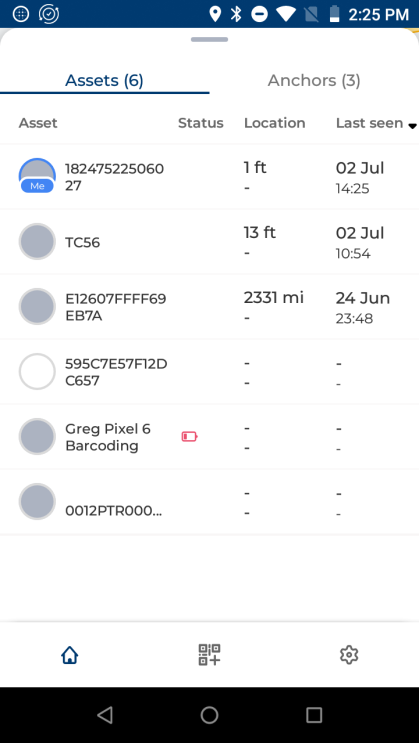
You can then navigate to the Asset List. Upon selecting an Asset, another map will be displayed along with the Asset's location and information.
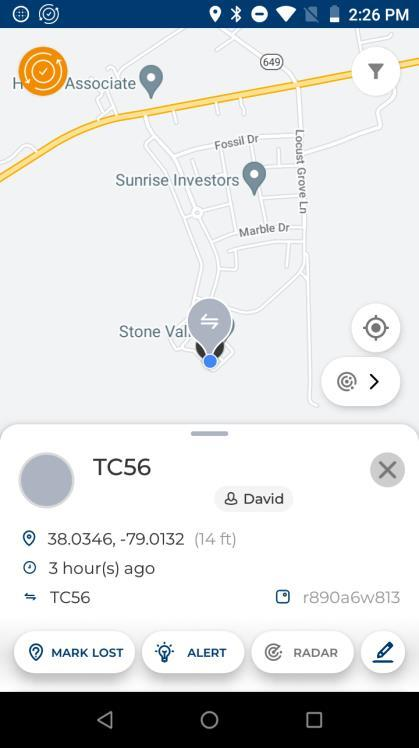
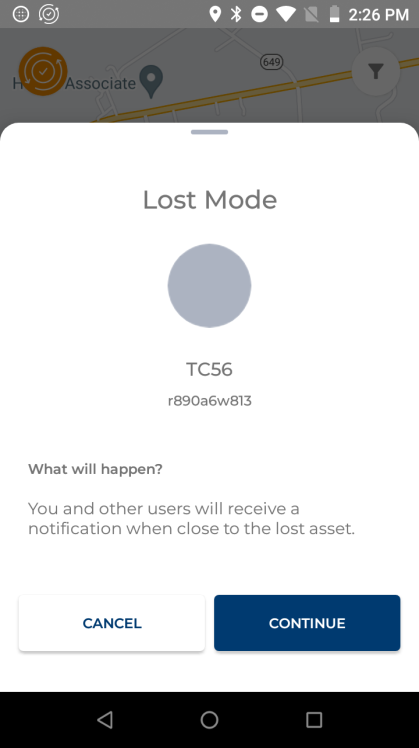
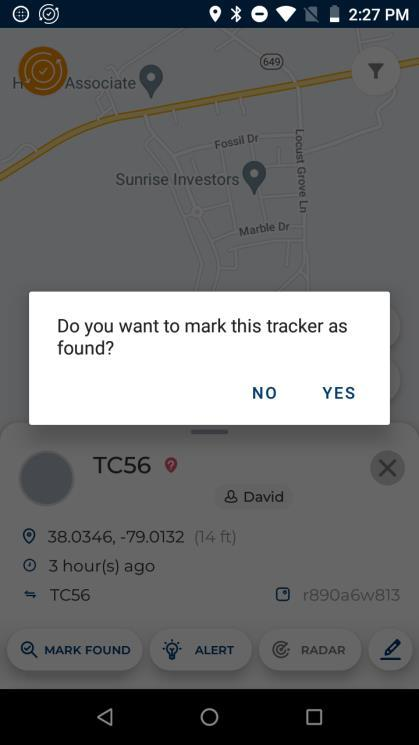
A User logged in using IntelliTrack credentials can navigate to VeriMy Locate and mark a device as Lost. Then,
- Whenever a VeriMy device is near the Lost device, an alert will be generated on the device.
- Once the device is recovered, it can then be marked as Found.
- The Lost or Found status of the device is reflected in the VeriMy status of the device.
Fixed
- When Licenses are no longer available, an Insufficient Licenses error message is now generated when an Administrator tries to Enable VeriMy for an Asset as well as when performing a Bulk Change.
- The VeriMy Locate function now properly uses the Serial Number as the Asset tag.
- If VeriMy is Inactive, additional Status and History entries are no longer recorded until the Status changes from Inactive.
- The VeriMy application will now minimize when a Locate alert is dismissed for a device that is already checked out.
- The Due Back Date/Time is now populated when a device is checked out via VeriMy and the Item has a Due Back setting.
- VeriMy's handling of lost connectivity situations during Checkout and Checkin has been improved.
- VeriMy's handling of cancelling a Check Out has been improved.
- On Zebra devices, the Recent Apps button on the Checkout form is now disabled.
- VeriMy no longer fails on devices that do not include an integrated scanner.
- The "Allow Scan at Sign In" setting now works as expected by allowing a User to scan in their Assignee ID and PIN when those fields are Active.
- VeriMy will now restart if the application closes unexpectedly or if the User closes the app via the Recent Apps button.
- Note: The Admin exit function should be utilized to exit the application.
Webhooks Framework
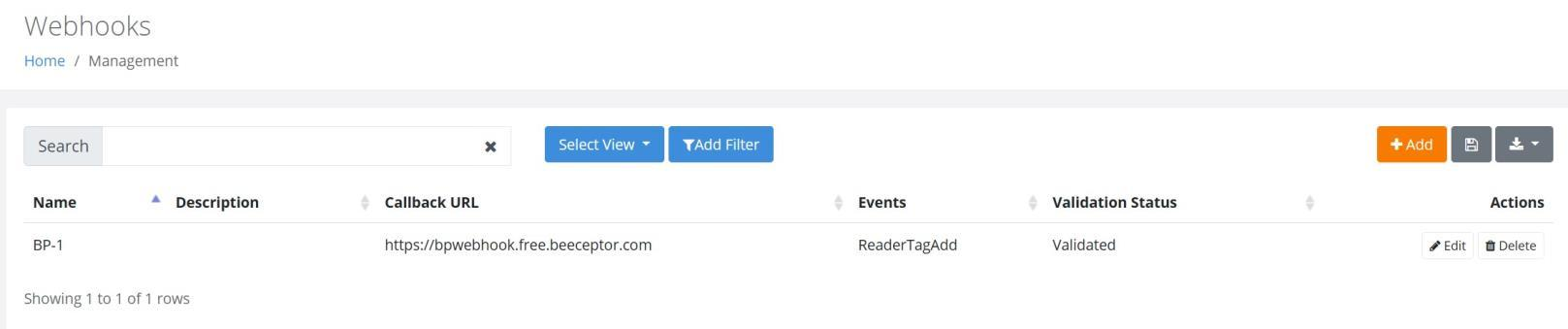
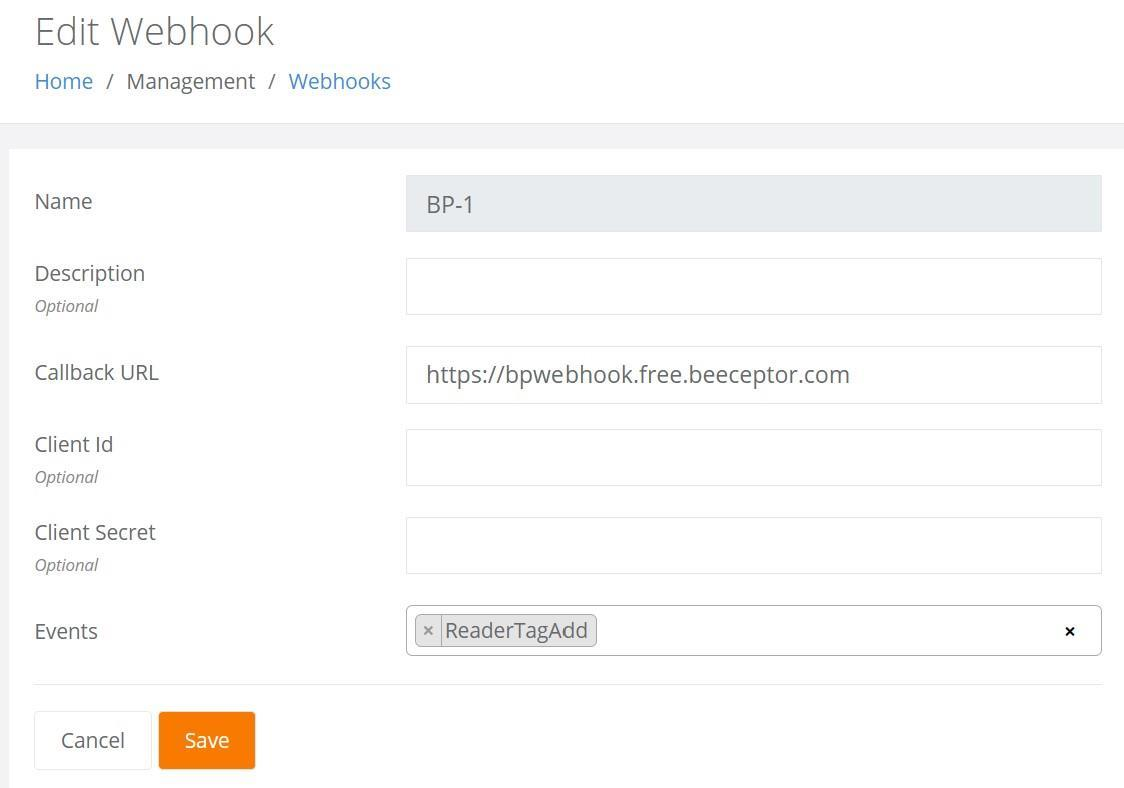
Webhooks have now been implemented into the IntelliTrack platform. These are automated HTTP requests that will be utilized to send events to the Customer APIs and contains a payload of data.
The Webhook Callback URL will need to be validated against Azure standards. Once validated, events will be sent in real-time as triggered and will contain pertinent information regarding the event.
This new feature, which is found under the Management > Developers > Webhooks Menu will allow Administrators to View a List of Webhooks as well as Add, Edit, and Delete them. A Retry option is also available in the event the Webhook failed validation.
General Platform
New Features
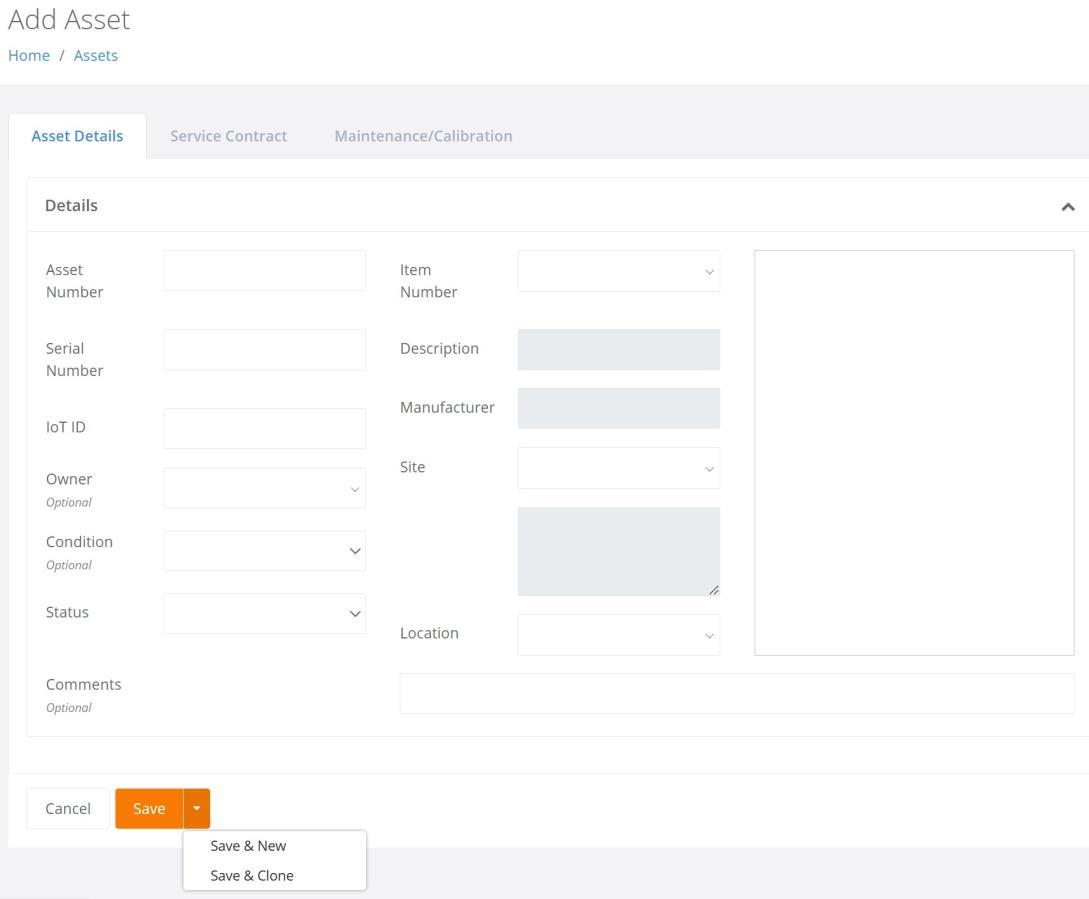
Advanced Save Options: When adding a new Entity, the User can now use the following Advanced Save options:
- Save: This functions as it previously did. When Save is pressed, the Entity is saved, and the User is returned to the Main Assets page.
- Save & New: This will save the entity, clear the input fields, and remain on the Add page for continued entity additions.
- Save & Clone: This will save the entity, clear any non-cloneable inputs, and remain on the Add page for continued entity additions.
- Note: The Save & Clone option is not available on all Add pages. An example of these three options can be seen in the screenshot below of the Add Asset page.
A Parent Location can now be cleared when performing an Add or Edit of a Location.
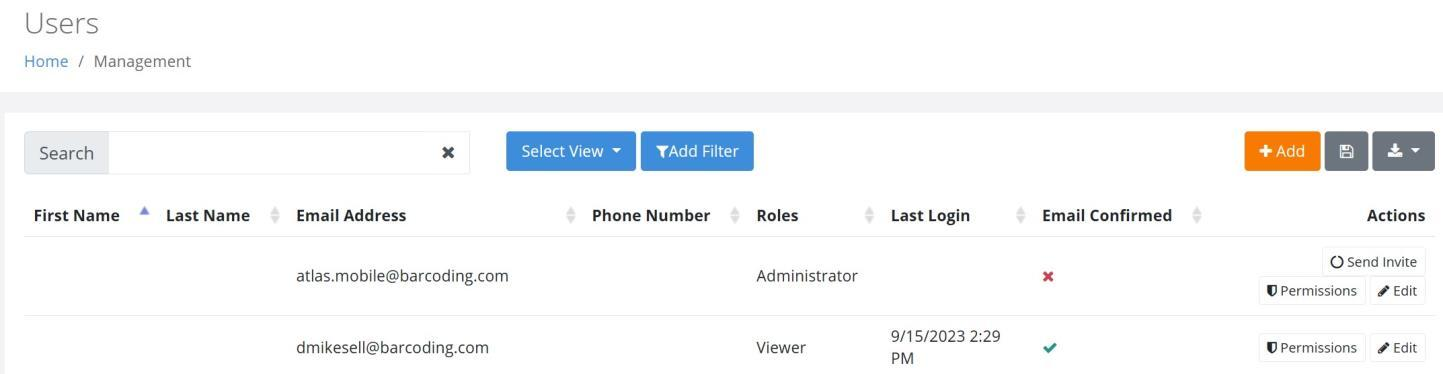
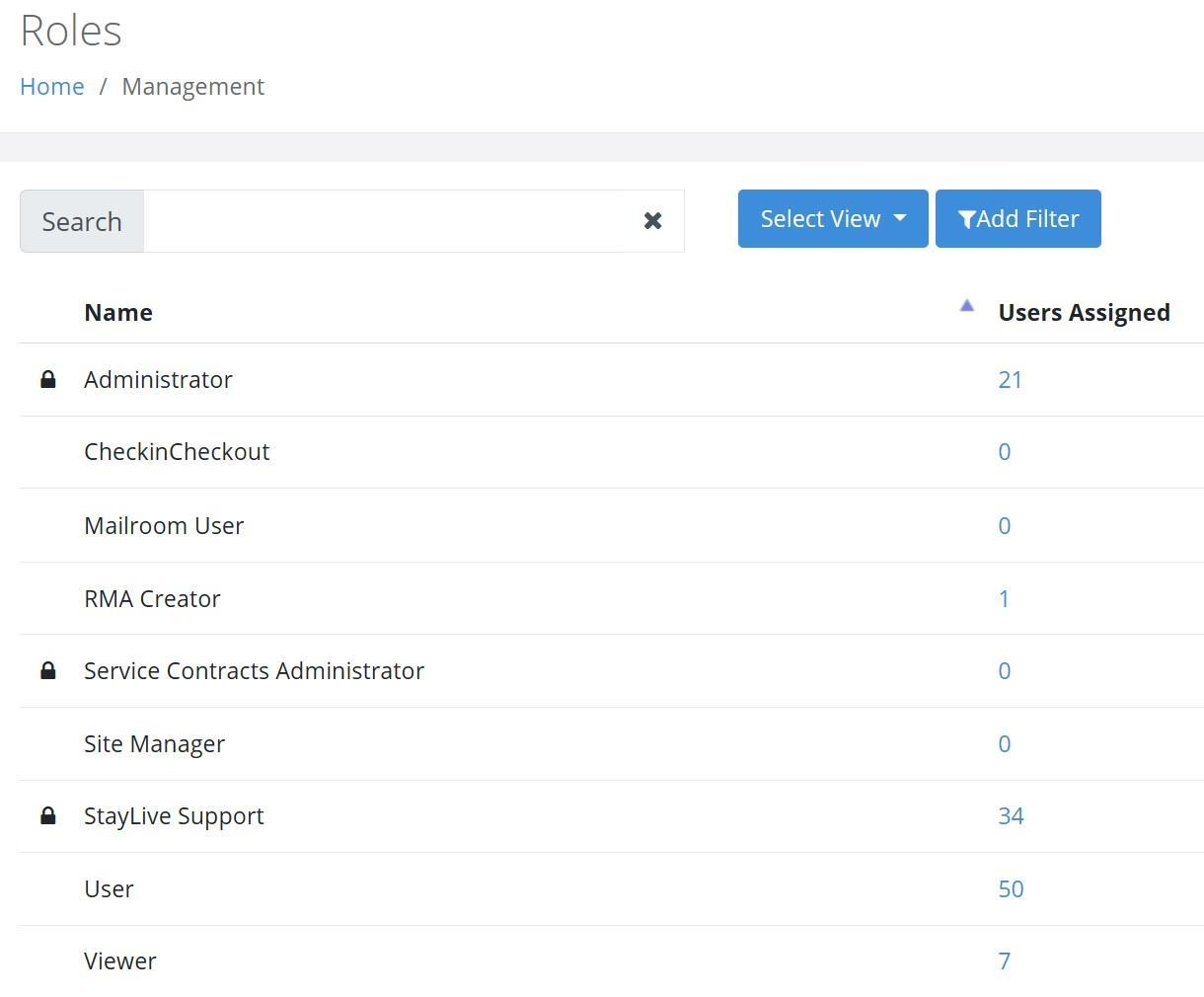
Administrators can now view their Users' Roles on the Management > Users > Users page. They can also view the number of Users Assigned to the various Roles on the Management > Roles page.
Fixed
- Email Subscriptions received for the Items, Manufacturers, and Conditions pages now contain data.
- A sort performed on any column found on the Subscriptions page no longer sets the time component back one hour.
- The Subscription page now properly displays the Schedule Summary in Weekly Day-Time format.
- The Assets page now properly applies the Site filter when the Site Name contains an apostrophe.
- When the Asset Movement Report is initially loaded, it now properly displays assets that have been moved within the last 30 minutes.
- When creating or editing a Dashboard Widget, the Selected View is now being displayed.
- The option to "Choose One or More Results" when creating or editing a Dashboard Widget is now only displayed when applicable.
- Performing an Edit of an Asset no longer deletes Field Values on the User Defined Fields, Maintenance/Calibration, and Device Details tabs.
- Asset History records with a timestamp value of "noon" are now properly displayed as "12".
IntelliTrack Mobile
New Features
- The Flyout and Home Menus have been restructured, thereby improving their functionality and organization.
- A Display Orientation setting has been implemented that allows the User to set the application's orientation to Portrait, Landscape, or use the Default Orientation Setting on the device. In addition, the User can then "lock" the orientation that has been selected.
- When in Landscape mode, the full screen options are displayed.
- The "Lock" icon has been updated with a new graphic and the Copyright Year has been updated at the About screen.
- On pages where entries can be deleted, Swipe-To-Delete functionality has been implemented. This replaces the previous method of tapping an Item to select it followed by tapping a Delete icon.
- If a User has access to multiple Sites, they can now specify their Site at Login. Once chosen, it will be used for all operations that require a Site. The designated Site will be displayed at the top of Menu pages and can be changed at any time using the Site option in the Flyout Menu or the Site button in the upper right area of the screen.
- Note: This also applies to Mailroom.
- Field labels have been incorporated into Forms and are retained after the value has been selected.
Fixed
- A Customer without a "Ship To Address" no longer causes the application to fail.
- The Serial Number field no longer overlaps on the Change Location screen.
- The Location List is no longer duplicated in the Location popup screen.
- The User can now View Assets for a Site that is different from the Default Site.
IT Assets Bundle
New Features
The Assets Not in SOTI Report now displays only the Item Type "Mobile Computers".
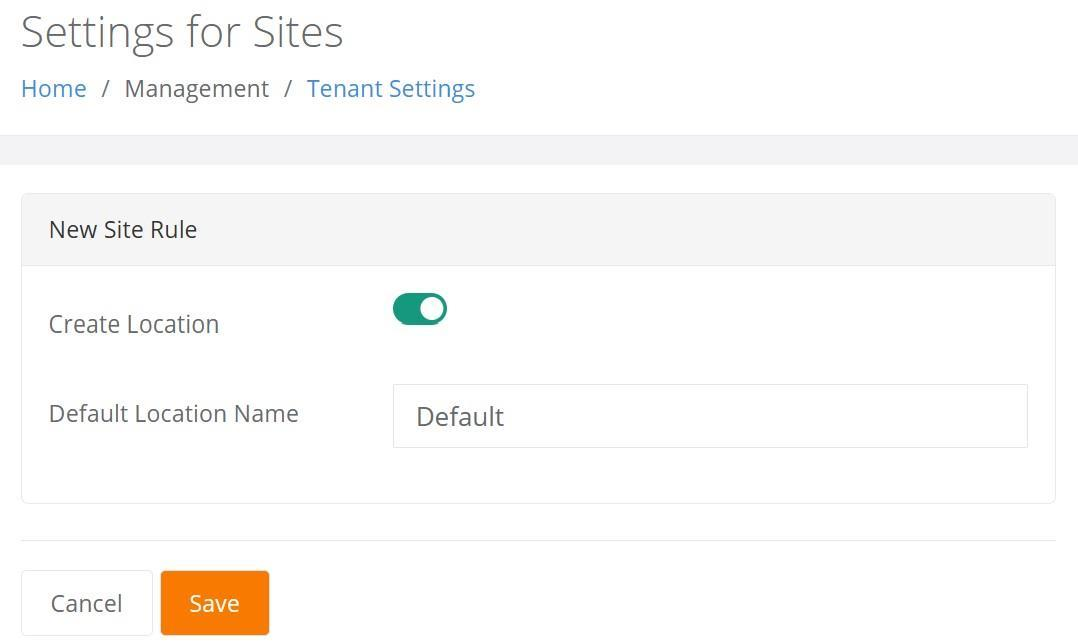
A new Tenant Setting enables an Administrator to create a Default Location when a Site is created.
Fixed
- A Validation Message is now generated to inform the User that only 40 characters can be entered into the Reason field when creating a Datalogic RMA.
- The Asset History section on the RMA Details page now properly displays a record when an RMA is created.
- The Username is now being displayed on the Shipments to Customer Report.
Fixed Asset Bundle
New Features - RFID
- The ability to Export Data in .CSV format has been implemented at the View Cycle Count page.
Fixed - RFID
- The Cycle Count Transaction Description displayed in the Asset History tab is more User friendly.
Mobile Application
New Features
- The Asset Inventory forms that are displayed on the Settings (Preferences) form have been renamed as follows:
- Directed Inventory (Form 1)
- Undirected Inventory (Form 2)
- New Asset Inventory (Form 3)
- Simple Inventory (Form 4)
Fixed
- At the Assets > Change Location screen, the Site selection no longer reverts to the original Site when the Site is changed via the Site popup.
- Duplicate Serial Numbers are no longer allowed when performing a new Asset Inventory.
- Mobile Transactions are now properly posted to the Asset History tab when performing a Directed, Undirected, or New Inventory as well as a Bulk Change Location.
- When performing a new Asset Inventory, a locked Condition Value is no longer cleared after Submit is pressed.
- At the Directed Inventory screen, the Site button no longer displays the Location for another Site.
- An Asset Inventory can now be successfully submitted using the Undirected Inventory option when an existing asset does not have a set Location.
- Submitting an Item on the Order - Receiving page no longer causes the Mobile Client to fail.
- The Application no longer locks up at the Picking screen when an incorrect Serial Number is entered followed by an attempt to re-enter the Serial Number.
- An Item Issue that uses Serial Numbers or Lots is no longer case sensitive.
Rotational Assets Bundle
New Features
- A Type Ahead Search for the Check-In By Assignee page has been implemented.
Mobile Application
Fixed
- At the Check Out screen, the Select Assignee popup can now be dismissed without the User selecting an Assignee.
- Rapid Check Out functionality has been implemented at the Check Out screen. A scan at the Check Out screen will be entered in the Asset Number field. When all required fields are locked and an Asset Number is scanned, the Check Out transaction will be submitted without the User having to tap Submit.
Consumable Inventory Bundle
New Features
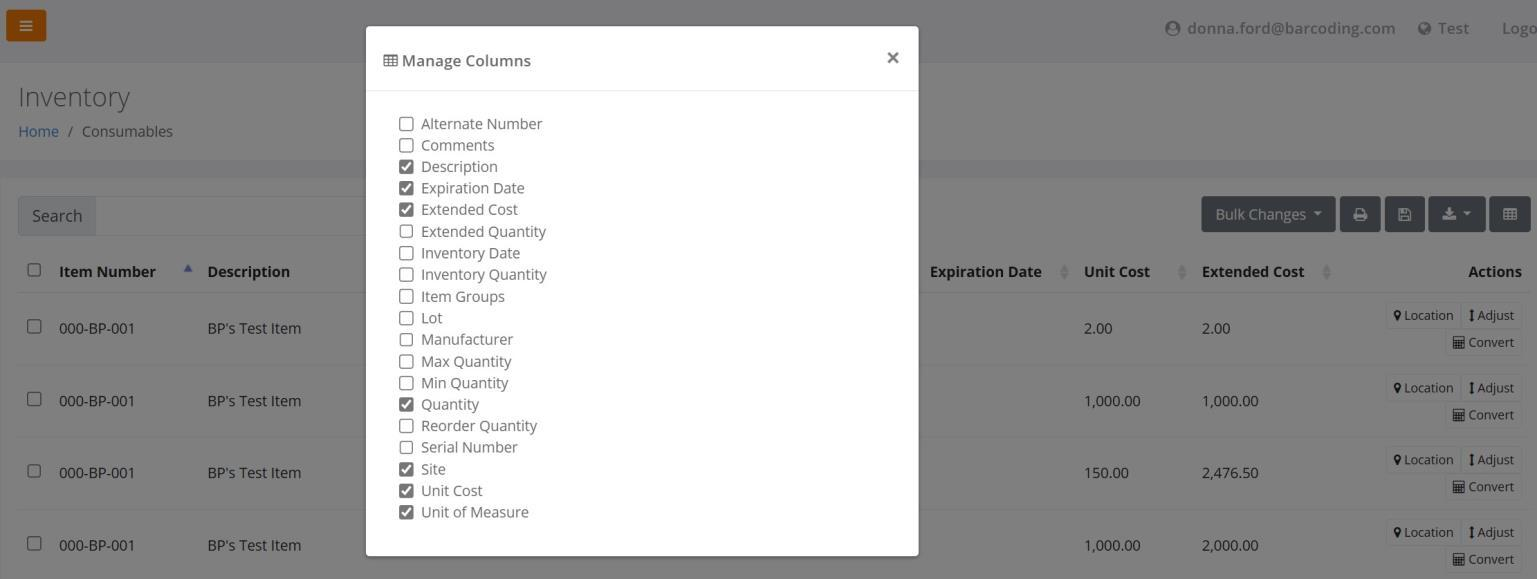
The Inventory Report can now be generated by Location and compiled in PDF format via the Print option. This report provides Unit Cost and Extended Cost Values by Site, which must be added to the report via Managed Columns.
The Item Number and Description fields are now available in the drop-down list when Adding an Item to an Order on the following pages:
- Add Issue
- Add Receipt
- Add Return
- Add Receiving
- Edit Receiving
- Add Picking
- Edit Picking
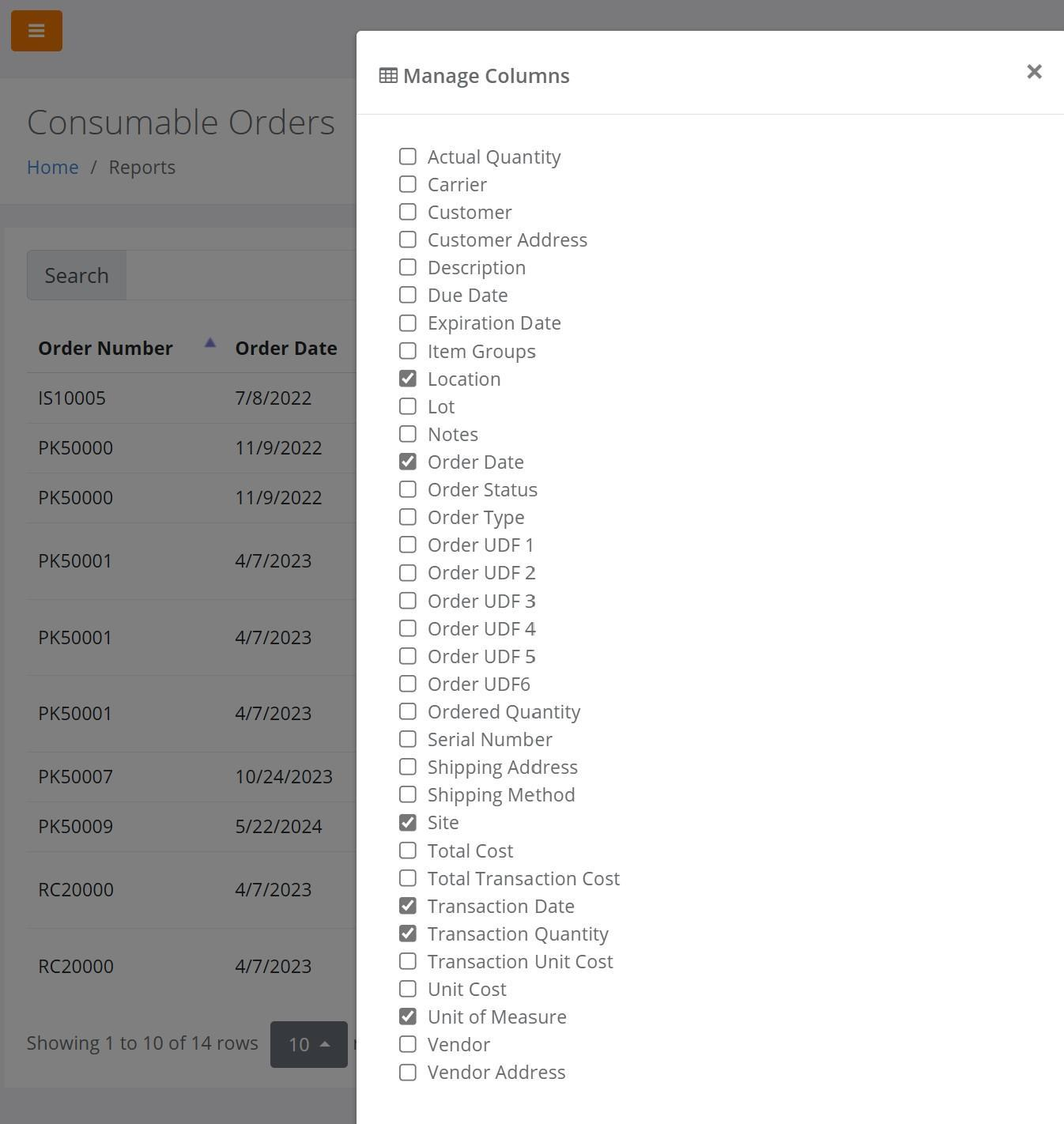
The Transaction Unit Cost and the Total Transaction Cost have been added to the Manage Columns options on the Consumable Orders Report.
Fixed
- The Consumable Inventory Summary Report now:
- Summarizes by Site-Item-UOM-Qty by Site.
- Provides a four-wall count by Unit of Measure vs. a separate line count.
- When Log Balance is turned On, the Quantity Balance is now calculated correctly when:
- A Move Transaction results in a Quantity update.
- An Inventory Adjustment is performed from the Add Item to Inventory form.
- When selecting an Item to Issue from Inventory, only those Items found in Sites that the User has access to will be displayed in the drop-down list.
Mobile Application
New Features
- The Inventory Consumables screen has been renamed to Physical Inventory.
Fixed
- Moving a Consumable Item from a Source Location to a Destination Location within the same Site can now be successfully submitted.
- At the Physical Inventory screen, a scanned Item is now validated when:
- The Location field is scanned, and
- The Lock icon is pressed to lock the Location field.
- At the Add Issue Item screen, the Site field refresh problem has been resolved, thereby ensuring that IntelliTrack properly responds to keypad entries.
- When performing a Receive Item, the Location List now includes the Locations for the Default Site.
- When Adding an Item to an Issue session, the No Inventory message and Site label now properly refresh when an Item correctly validates for the Site.
- At the Consumables > Change Location screen, the Site selection no longer clears when the User selects a different Site as the Default Site.
- The Unit of Measure field label and line no longer disappears when the User validates the Item on the following screens:
- Physical Inventory
- Add Return Item
- Add Receipt
- When the exact Location is scanned into the Location popup, it is no longer duplicated in the list on the following screens:
- Physical Inventory
- Add Return Item
- Add Receipt
- On the Receiving form, the Header Area now shows the correct caption, "Receive Qty".
- Submitting an Item on the Order - Receiving page no longer causes the Mobile Client to fail.
- At the Select Location popup, the full Location list is now displayed and available for selection when a Pick Item has more than ten locations. This applies to all long popup lists except for the Select Site popup list.
- A Negative Issue is no longer allowed for an Item that uses Lots and/or Expiration Dates.
Mailroom Bundle
Mobile Application
New Features
- The "Damage" field has been renamed to "Condition".
Fixed
- Submitting a Package Receive no longer causes the Mobile Client to fail.
- Optional fields are no longer required for the Submit option to become enabled.
- At the Receive Packages screen, the Scan Focus has been improved so that the Submit option is Enabled after the Package Type is scanned.
- A Package Recipient Type Assignee that is associated with a Mail Stop and has at least one package with a Received Status no longer becomes Disabled when a Mail Stop is edited.
- The scanner remains active if the User exits the Assignee selection popup without selecting an Assignee.
- Packages are now successfully moved when performing a Bulk Change Location.
- Users with access to the Mailroom Bundle only no longer have access to the Items Menu option.
- The Scan Beam is no longer enabled at the Deliver Packages > Signature screen.
- Rapid Receive functionality has been implemented at the Receive Package screen. A scan at the Receive Package screen will enter the Tracking Number field. When all required fields are locked and a Tracking Number is scanned, the Package Receive transaction will be submitted without the User having to tap Submit.