Appearance
IntelliTrack Q4 2024 Release Notes
Released: December 23, 2024
Quarterly release introducing three major features - Advantix cellular management with individual and bulk SIM card changes, bulk asset creation, and multi-language options - along with new features, improvements, and fixes for the general platform, VeriMy Gen2, and the IT Assets, Fixed Assets, Rotational Assets, and Consumable Inventory bundles.
Advantix Cellular Management
IntelliTrack's Integration with the Advantix BLITZ™ Platform has been implemented. This feature will enable End Users with the IT Assets bundle to manage their SIM Cards directly in IntelliTrack in the event a device requires a change.
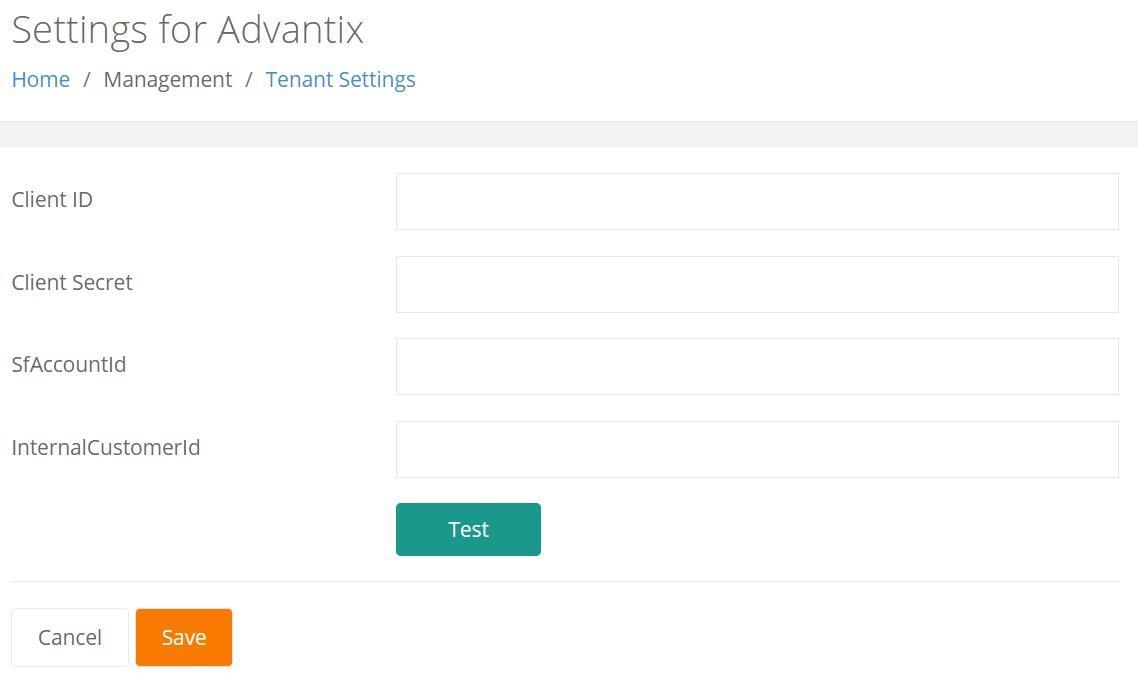
To utilize this functionality, a Tenant Administrator will need to enter the Tenant Settings (Management > Settings > Tenant Settings > Advantix) as well as Test for a successful connection.
Individual SIM Card Changes
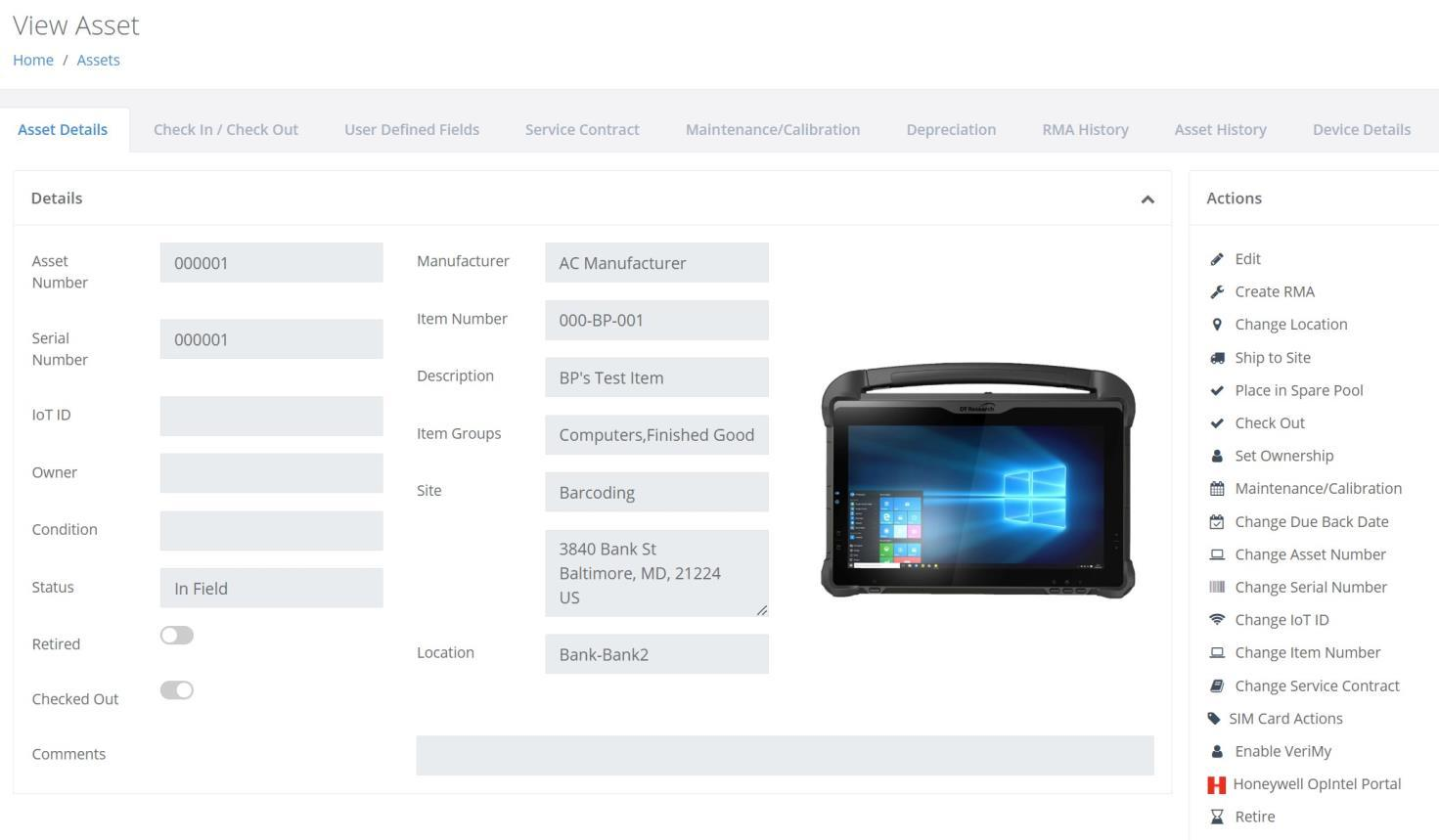
Once implemented, SIM Card Changes can be made to an individual Asset via the Actions options found on the View Asset page, as seen below.
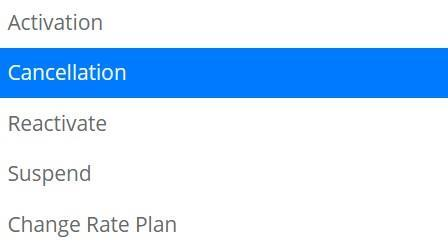
This will launch the SIM Card Actions popup screen where the User will select from the following actions:
- Activation
- Cancellation
- Reactivate
- Suspend
- Change Rate Plan
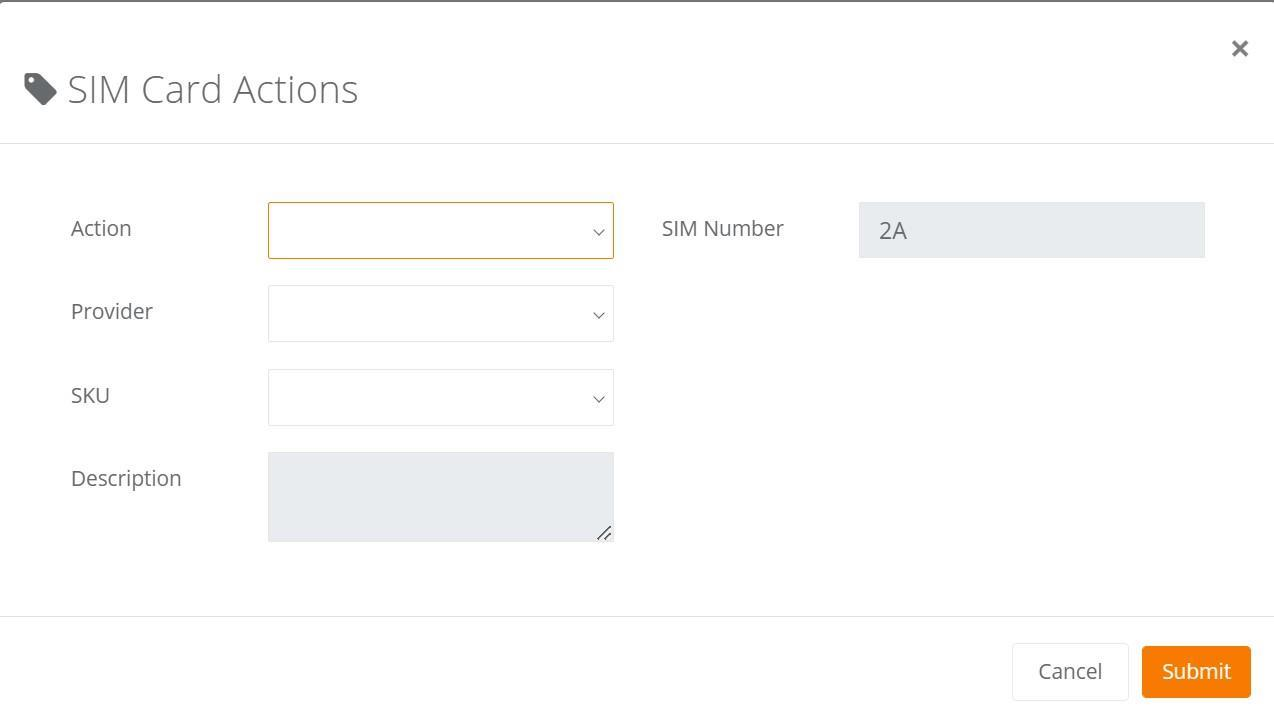
They will then select the Provider and SKU if the Action chosen is an Activation or Change Rate Plan. If the Action is a Cancellation, Reactivate, or Suspend, the SKU field will be Read Only.
Note: The Description field will always be Read Only.
Bulk SIM Card Changes
SIM Card Changes can also be made to multiple Assets at one time. To do so, the User will select the Assets by clicking in the box found to the far left of the Asset Number from the Assets page, as seen below. They will then choose the SIM Card Actions option found under Bulk Changes.
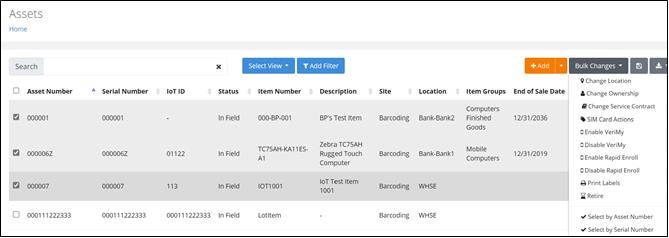
This will launch the Bulk Changes - SIM Card Actions popup screen where the User will select from the following actions:
- Activation
- Cancellation
- Reactivate
- Suspend
- Change Rate Plan
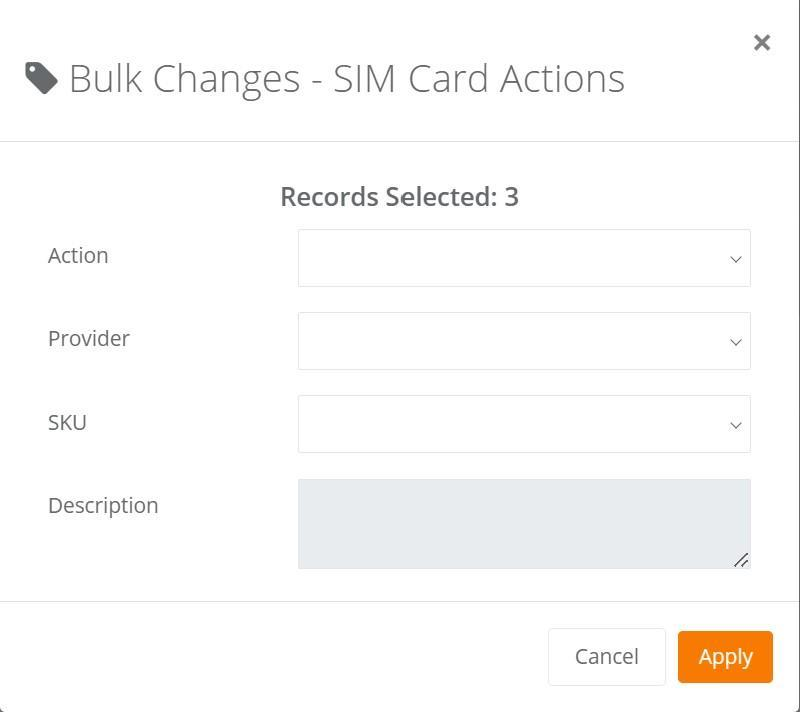
They can then select the Provider and SKU if the Action chosen is an Activation or Change Rate Plan. If the Action is a Cancellation, Reactivate, or Suspend, the SKU field will be Read Only.
Note: The Description field is always Read Only.
- When SIM Card Actions are performed against an Asset, the Asset History page will contain an Event that describes the Action taken.
- Users may also add the SIM Card Status to the Assets page via the Manage Columns option.
Bulk Asset Creation
A more efficient means to create Multiple Assets at once has been implemented. This feature also allows for the option to Print.
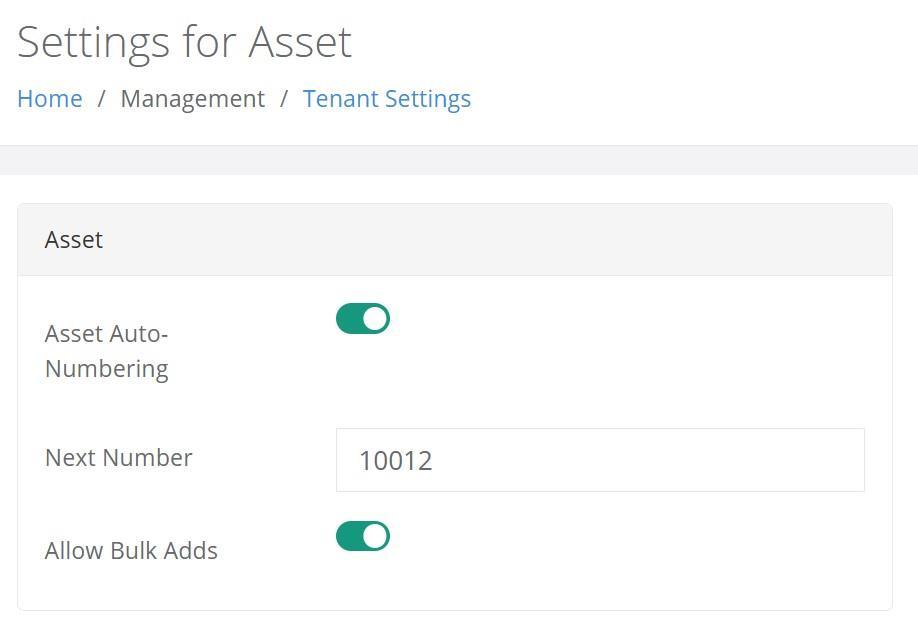
To utilize this functionality, a Tenant Administrator will need to adjust the Tenant Settings for Assets (Management > Settings > Tenant Settings > Asset), as seen below. On the Settings for Asset page, the Administrator will toggle on the Asset Auto-Numbering and the Allow Bulk Adds options and then Save the settings.
Note: Asset Auto-Numbering must be toggled on to activate the Allow Bulk Adds option.
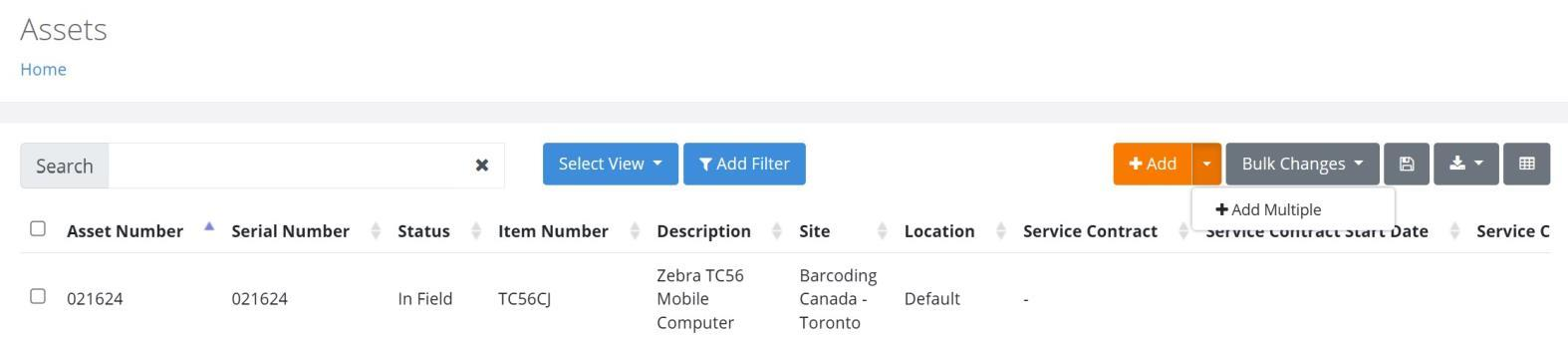
Once Saved, the Assets page, as seen below, will now display a dropdown arrow next to the Add button, which contains the +Add Multiple option.
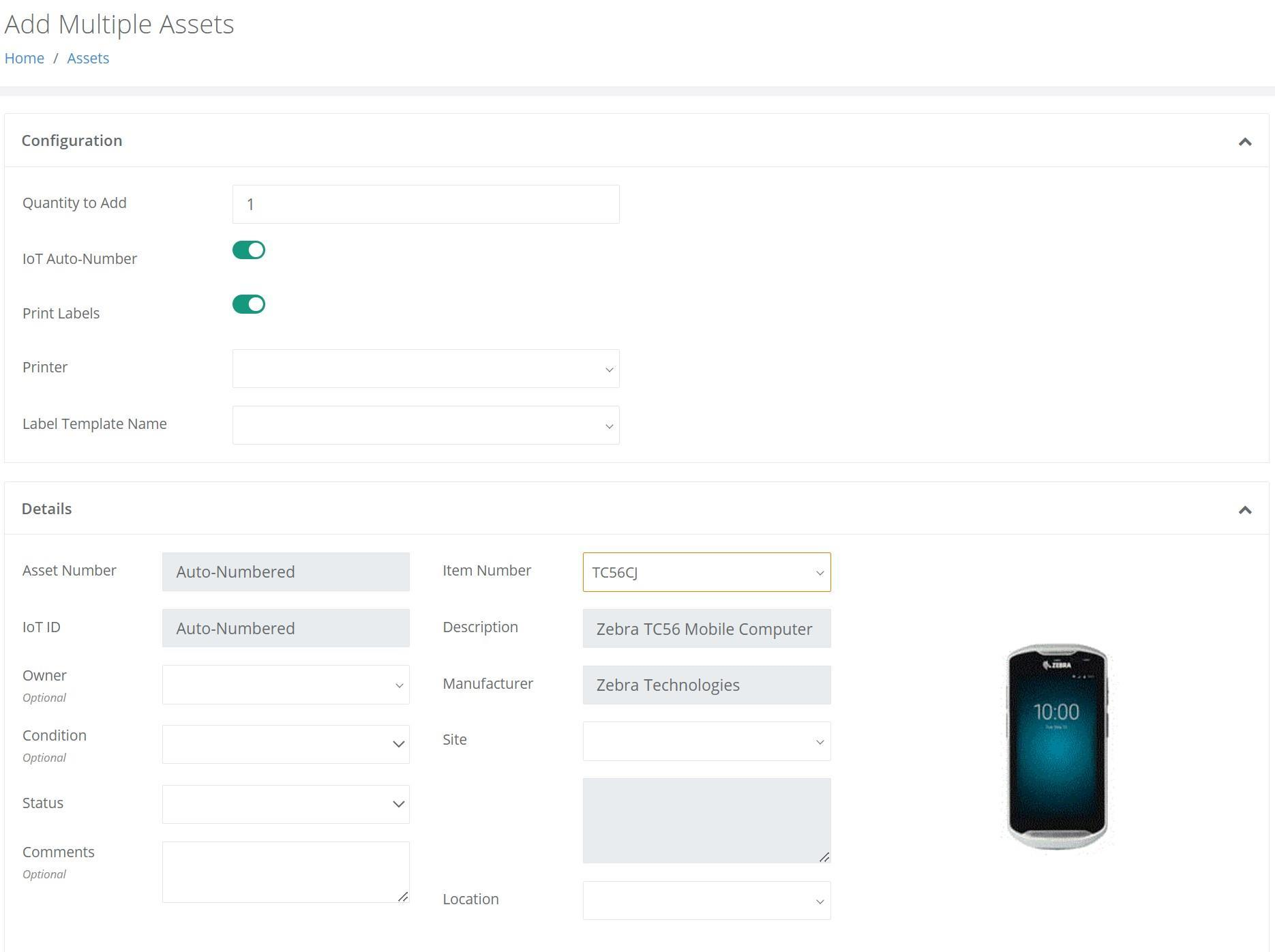
Upon selecting the +Add Multiple option, the following screen will be displayed. The User will have the ability to add between 1 and 500 Assets. They can also elect to Print Labels if the option is toggled On. After entering the Quantity to Add, along with the required fields, the User will click on Save to perform the Bulk Asset Creation.
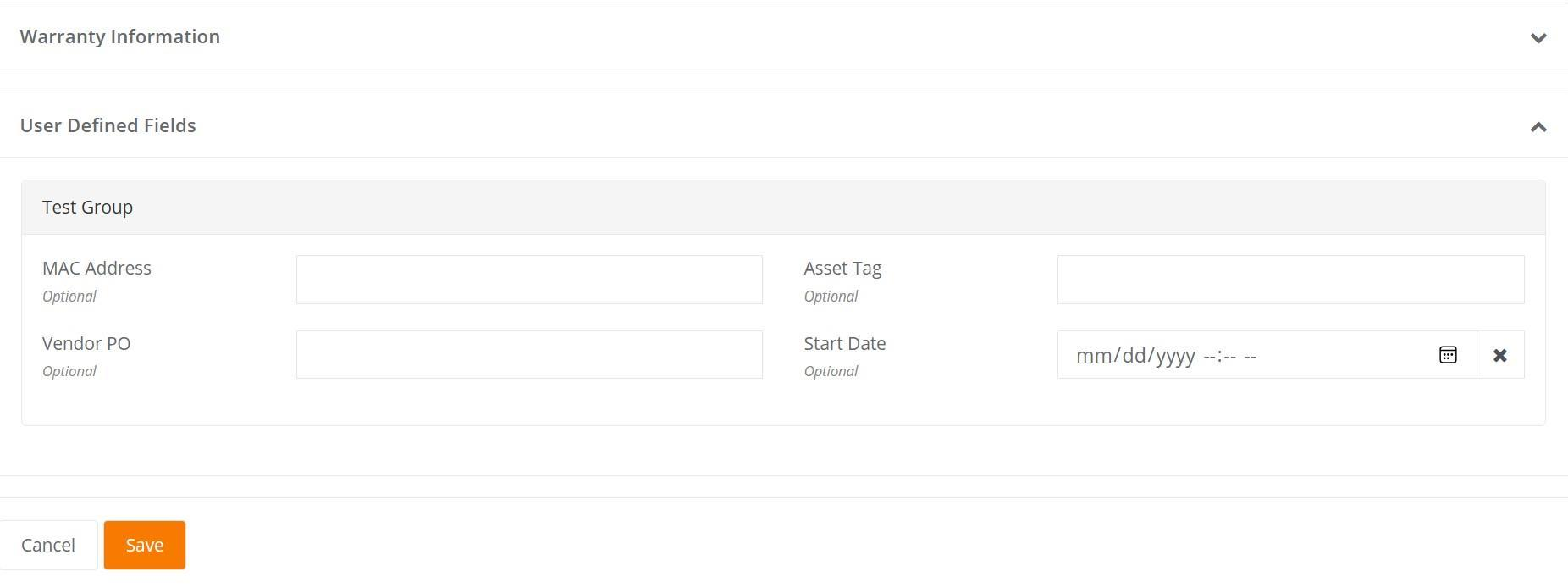
Note: If the Item Number is associated with User Defined Fields (UDFs), they will be contained on the Add Multiple Assets page, as seen below.
Multi-Language Options
Users are now able to set their preferred Language as a Profile Setting from their IntelliTrack User Profile page. The Language value chosen will be used for their User Identity.
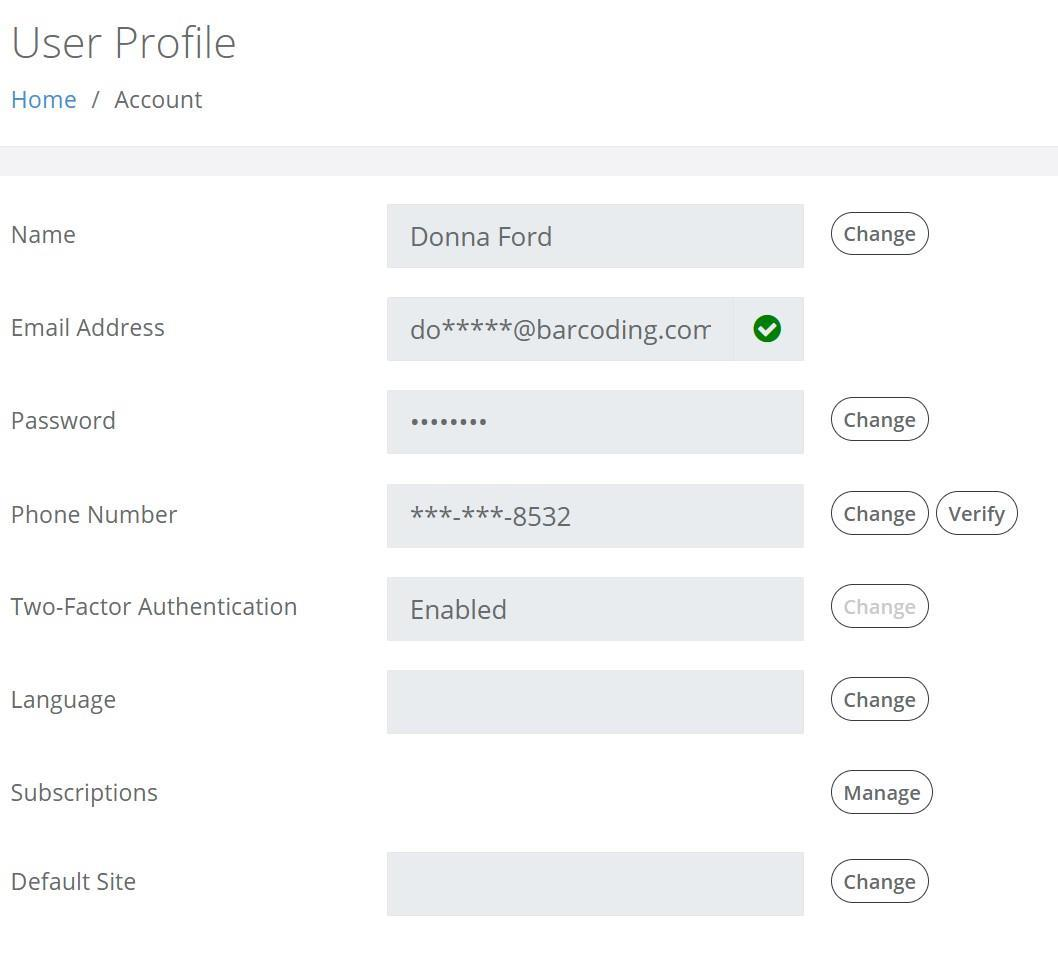
To set their preferred language for the IntelliTrack platform, the User will click on their Email Address in the upper right corner of any IntelliTrack page to launch the User Profile page, as seen below. Next, they will click on the Change button found to the far right of the Language Setting.
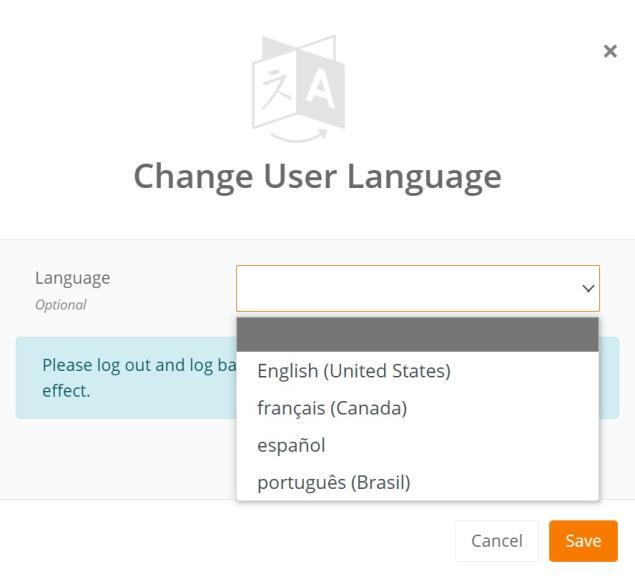
This will launch the Change User Language popup. The User will then select their Language preference from the options available and click on Save. They must then log out and back in for the change to take effect.
When they log back into IntelliTrack, the pages and forms will be displayed in their preferred language.
General Platform
New Features
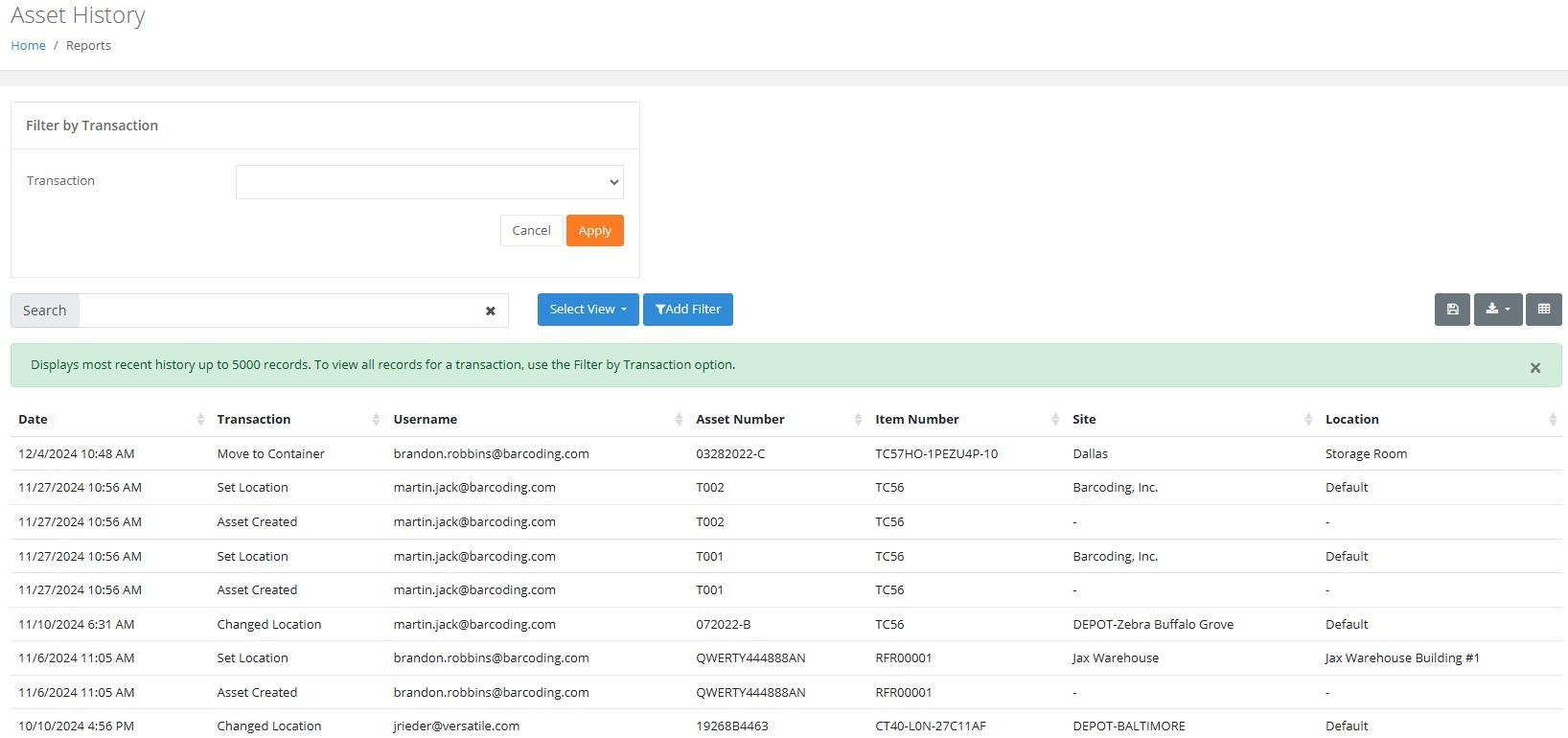
The Asset History Report is now found on the Insights page and is tied to the Fixed Assets, Rotational Assets, and IT Assets bundles.
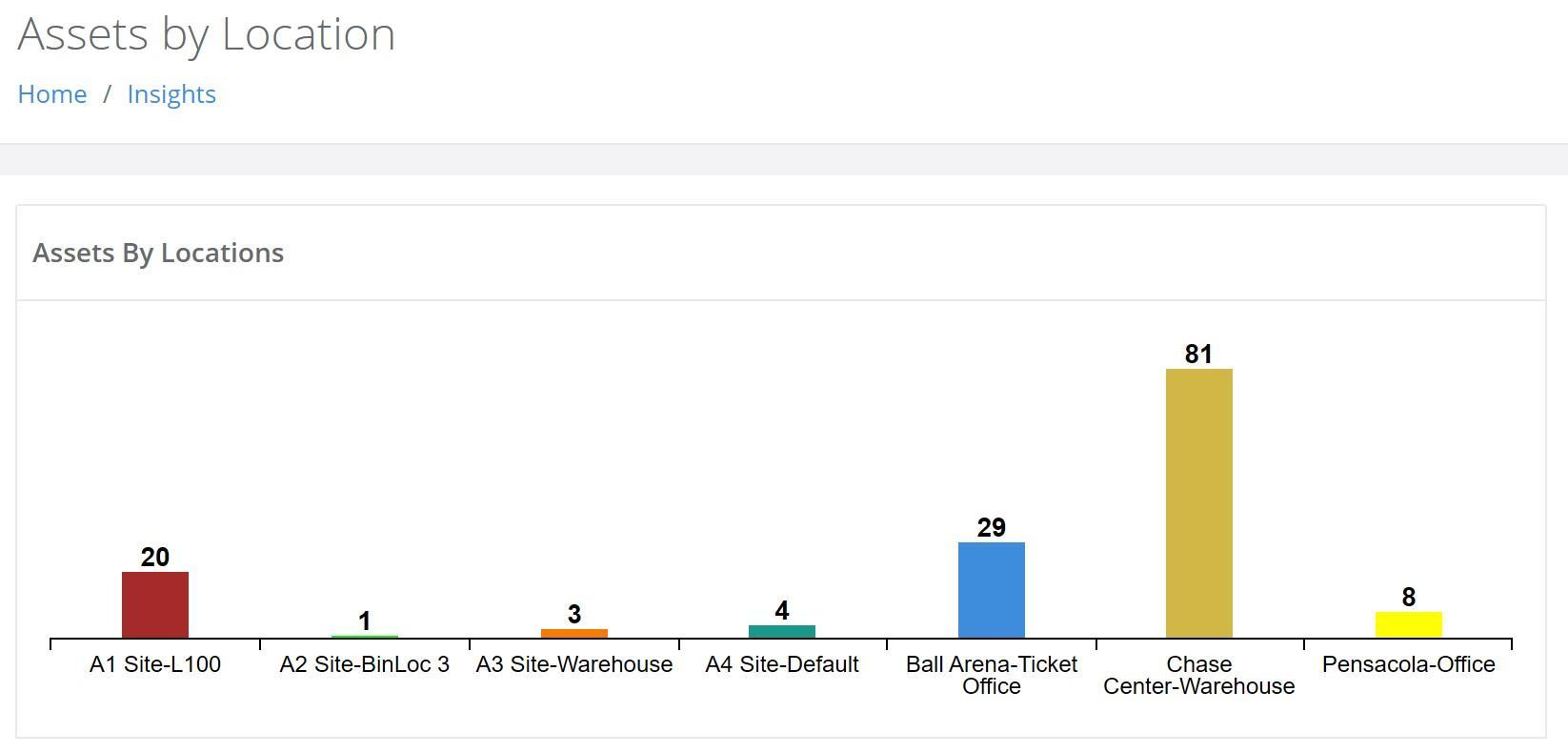
A new Dashboard Widget now allows for the creation of an Assets By Location Dashboard.
Improvements
Performance
- Overall Performance has been improved when loading Reports and Pages that contain a large amount of data. Improvements can be seen, but are not limited to the following:
- Consumable Orders Report
- Items Page
- Inventory Page
- Add/Edit Receiving Page
- Add Receipt Page
- Add/Edit Container Page
Subscriptions and Filters
- Improvements have been made to Subscribed Reports as well as the handling of Date Filters. These can be seen, but are not limited to the following reports:
- Checked Out Assets
- Past Due Assets: Now contains Assignee data for only the subscribed Site.
- RMA Summary: No longer returns all Open RMAs when filtered by Item Number.
- RMAs In Transit
- Assets by Sites
- Consumable Orders
- Consumable Inventory Summary: Now properly filters by Item Groups.
- Item History
- Asset Movement
- Updates have been made to the Service Contracts page that improves visibility and allows for easier access to the data.
- The ability to print Item UDFs and Asset UDFs on labels has been implemented for the BarTender label integration.
Fixed
- The Asset History Report now properly displays transactions that are older than 12/12/2023.
- The Owner field can now be successfully cleared from the View Asset > Actions Menu > Change Ownership popup.
- The Add Assets page no longer generates a 500 error when entering invalid data or omitting a required field.
- A User can now perform a Bulk Change Location for assets that do not have a set Location.
- The Asset Movement Report now correctly displays the Showing Last timeframe.
VeriMy Gen2
New Features
- VeriMy now supports Android's Dark Theme.
- A Tenant Administrator can now enforce the VeriMy login by Assignee ID only.
Improvements
- VeriMy's Drop Logic and Report Frequency have been improved.
IT Assets Bundle
Improvements
- For creating more reliable Honeywell RMA requests, the Contact Name field has been separated into First Name and Last Name.
- The Reason field on the Create RMA form is limited to 40 characters for Datalogic RMAs and 120 characters for Zebra and Honeywell RMAs.
- The optional Repeat Repair toggle has been removed from the Create RMA form.
Fixed
- Status updates for Datalogic RMAs are now being processed.
- Devices no longer reflect the status of In Transit for RMAs that have been shipped by Zebra.
Fixed Asset Bundle
New Features
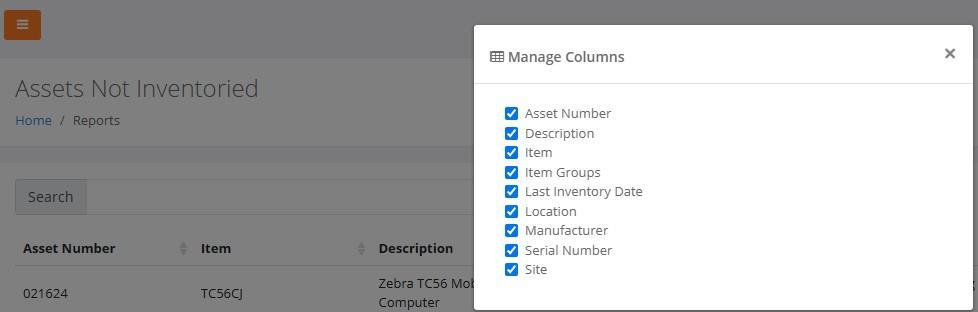
A Last Inventory Date option is now available via Manage Columns, as seen below, in the Assets Not Inventoried Report.
The Asset's purchase cost is now displayed as a Currency Value on the following pages:
- Assets Page
- View Asset Page / Details Tab
- View Asset Page / Depreciation Tab
- Edit Asset Page / Details Tab
- Edit Asset Page / Depreciation Tab
- Note: This also applies to the IT Assets and Rotational Assets bundles.
Fixed
- An Object Error no longer occurs when the Accept button is pressed at the View Cycle Count page for an Unexpected Asset.
Mobile Application
Fixed
- The RFID Cycle Count and Simple Inventory pages no longer clear previously picked values.
Rotational Assets Bundle
New Features
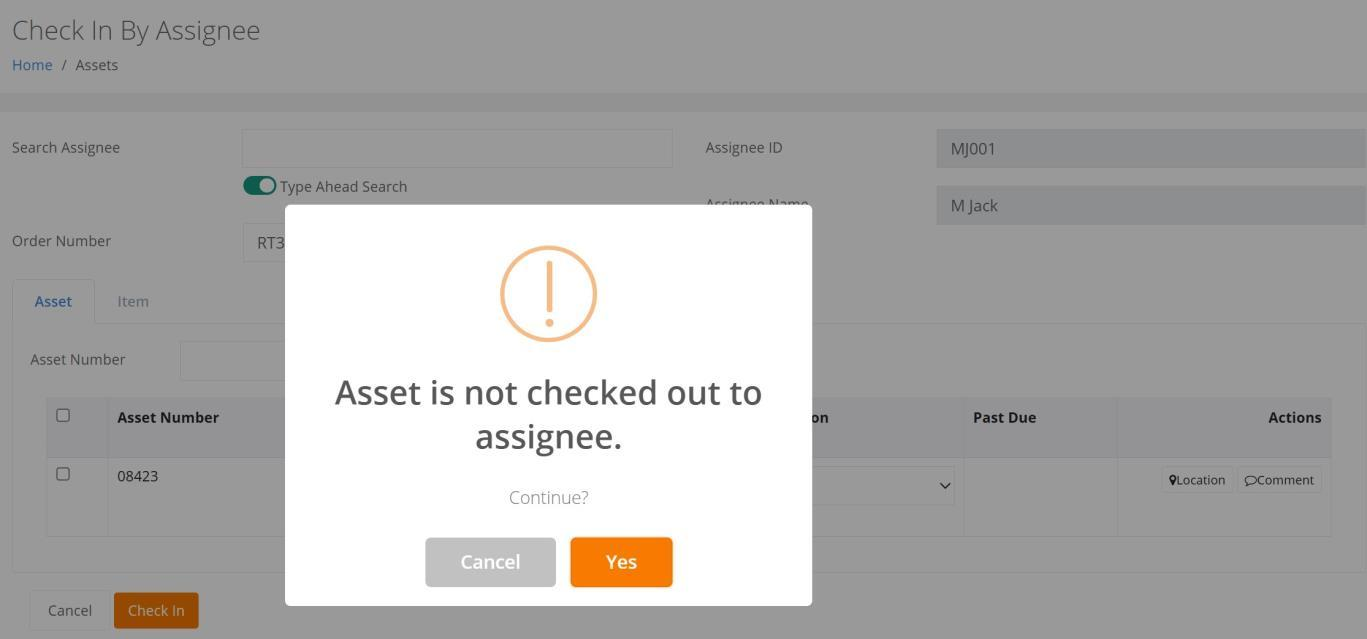
On the Check In By Assignee page, an Asset can now be successfully checked in by an Assignee who is not the Check Out Assignee. As seen below, a prompt is displayed that requires a response to process the Check In.
Consumable Inventory Bundle
New Features
Users of the Containers feature can now Print a formatted Container Summary Report from the Containers page. The containers that are selected via a multi-select option will then be included in the printed output with each Container having its own page.
An Alternate Item Number option is now available via Manage Columns in the Consumable Orders page.
An Item Group option is now available via Manage Columns in the Consumable Inventory Summary Report.
An Order Line Item Note field has been implemented in the Item History Report for the following transactions:
- Issue
- Receipt
- Return
- Picking
- Receiving
It can be incorporated into the report via the Manage Columns option.
The Goods Received Note has been updated as follows:
- Display UDF field(s) if enabled for the Order Type and the field(s) contain data for the specified Order.
- Display each Line Item with the full transaction detail.
The Delivery Note has been updated as follows:
- Display UDF field(s) if enabled for the Order Type and the field(s) contain data for the specified Order.
- Adjust the position of the following fields so that they are directly below the Main Line Item Header:
- Serial Number
- Lot
- Expiration Date
- Shipped Qty
- UOM
Fixed
- The Containers > Move Container > Location dropdown menu, found when performing a Move Container transaction, no longer displays duplicate Locations or a blank option.
- An Error is no longer generated when the User attempts to Change the Location on a Container Move transaction.
- Note: These two Container fixes also apply to the Rotational Assets and Fixed Assets bundles.
- The Goods Received Report and Packing List Report now properly handles the display of an Item Number that contains a Vertical Bar symbol.
- At the Consumable Orders Report, a User can now successfully:
- Perform a Search or apply a Filter on the Item Groups field.
- Apply individual components (street, street2, city, state, and postal code) to a Customer, Shipping, or Vendor address. As a result, the User can now Filter, Search, or Sort on the address by individual components.
- The Consumable Orders Report now properly loads when the Address associated with the Customer Entity contains a value in the Street2 field but does not contain a State value.
- When an Inventory Import .CSV file contains a line with an Item Number that does not exist in the Tenant, the entire import no longer fails. In addition, the Email Notification containing the import results is now successfully sent.
- Importing inventory into a Sub-Location no longer fails.
- At the Consumables > Inventory page, a User can now successfully:
- Perform a Single Inventory Move.
- Search for an Item Number.
- Search or Filter by the Inventory Quantity field.
- Optimized sorting has been implemented for complex Item Number values. As a result, Items now appear in the dropdown list and are in the proper sequential order, improving the User's ability to add items to a Receipt Order.
- Disabled Items are now displayed at the Items page.
- At the Add Receipt page, the Unit Cost Field is now Enabled for an Item that uses Track Cost.
- A Dismissible Alert is no longer displayed in the onscreen Print Preview on the Inventory by Location Report or the Containers page after pressing the Print button.
- A User is now able to successfully add a Unit Cost to the Unit of Measure - Each Count in a language other than English.
- Note: This also applies to the IT Assets, Fixed Assets, and Rotational Assets bundles.